> ## Documentation Index
> Fetch the complete documentation index at: https://docs.dezerx.com/llms.txt
> Use this file to discover all available pages before exploring further.
# PayPal
> Follow this guide to connect PayPal with Spartan
## Prerequisites
* PayPal Business Account
* Access to PayPal Developer Dashboard
* Your application ready for integration
## Access PayPal Developer Dashboard
Go to [https://developer.paypal.com](https://developer.paypal.com), click **Log In**, and sign in with your PayPal Business account credentials.
After logging in, open the PayPal Developer Dashboard, where you can manage applications and credentials.
## Create a New Application
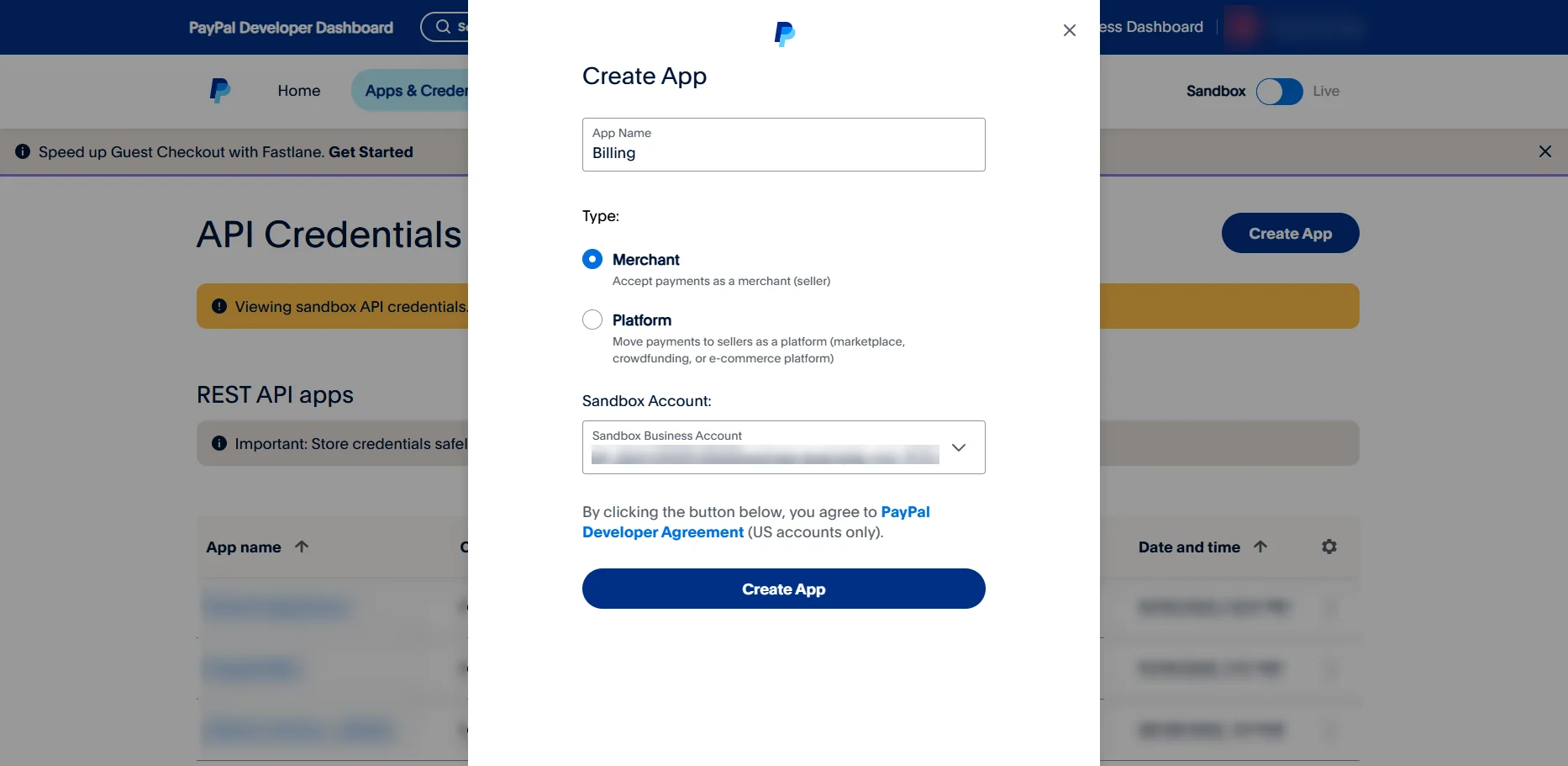
In the left sidebar, click **My Apps & Credentials**, then click **Create App**.
* **App Name**: Enter a descriptive name, such as `My Store Payment Gateway`.
* **Type**: Select **Merchant** (default).
 ## Create a Webhook
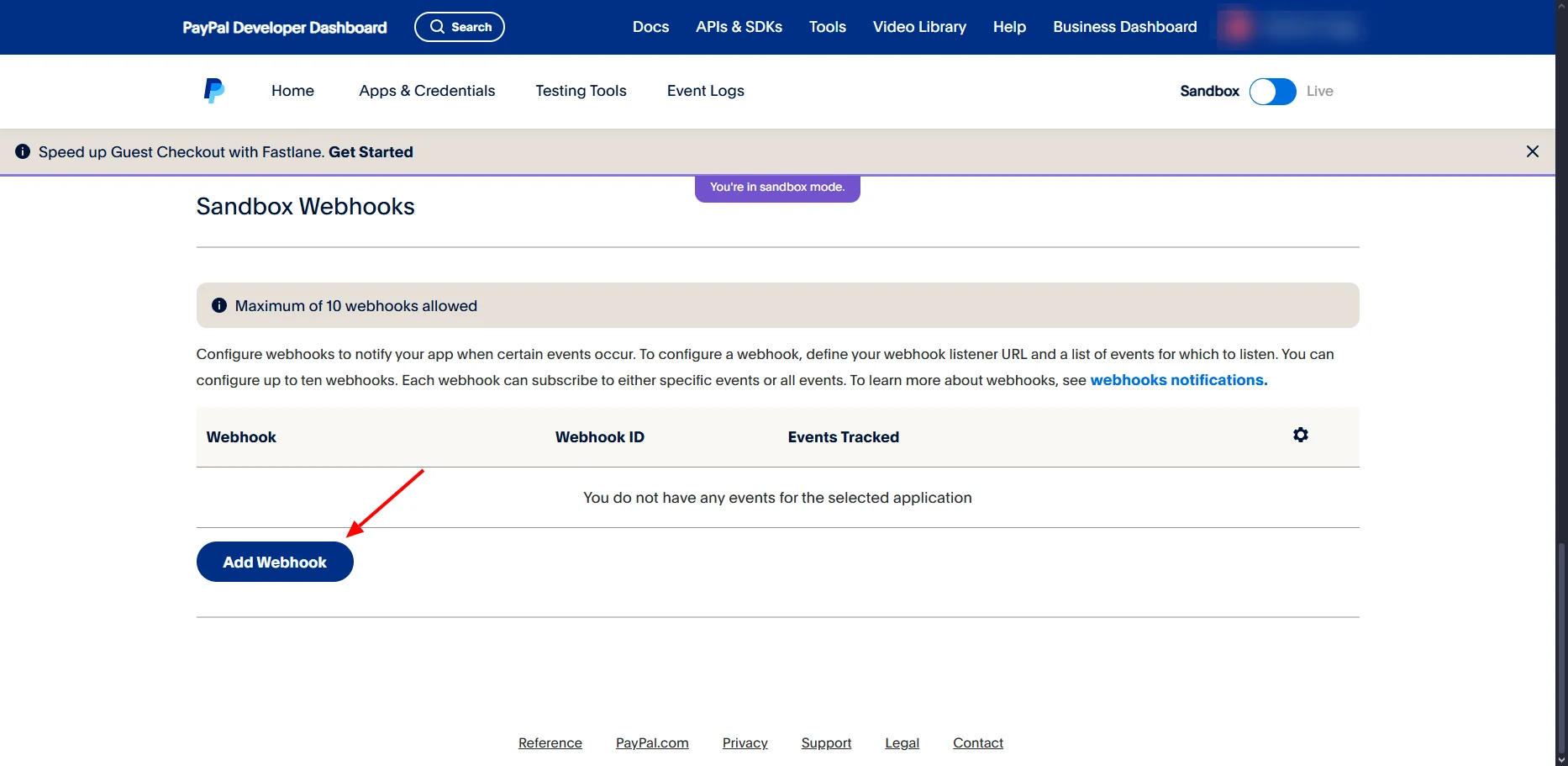
Scroll to the end of the application settings and click **Add Webhook**.
## Create a Webhook
Scroll to the end of the application settings and click **Add Webhook**.
 ## Select Webhook Events
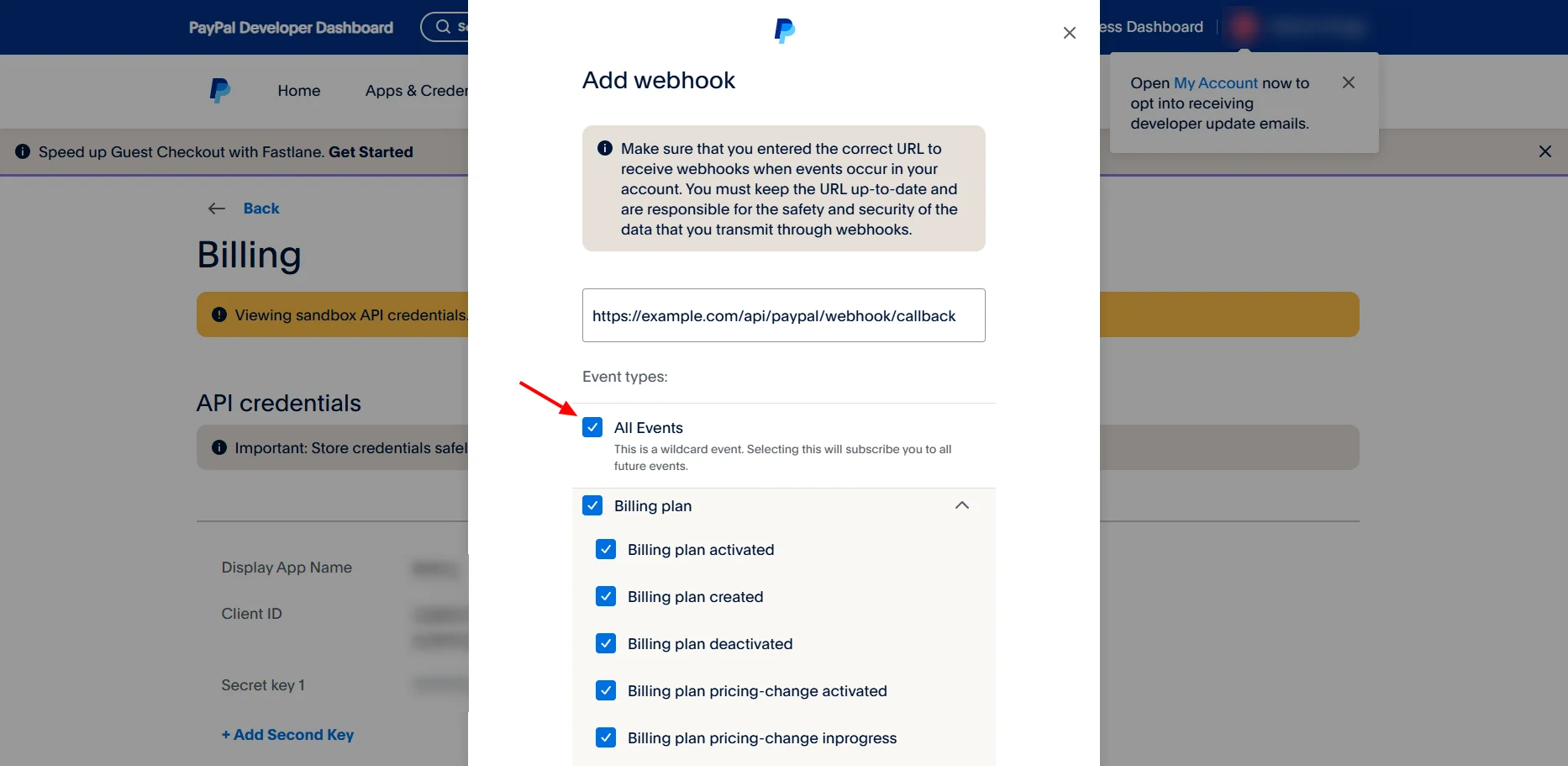
Select **All events**, scroll down, and click **Create**.
## Select Webhook Events
Select **All events**, scroll down, and click **Create**.
 ## Get Webhook ID
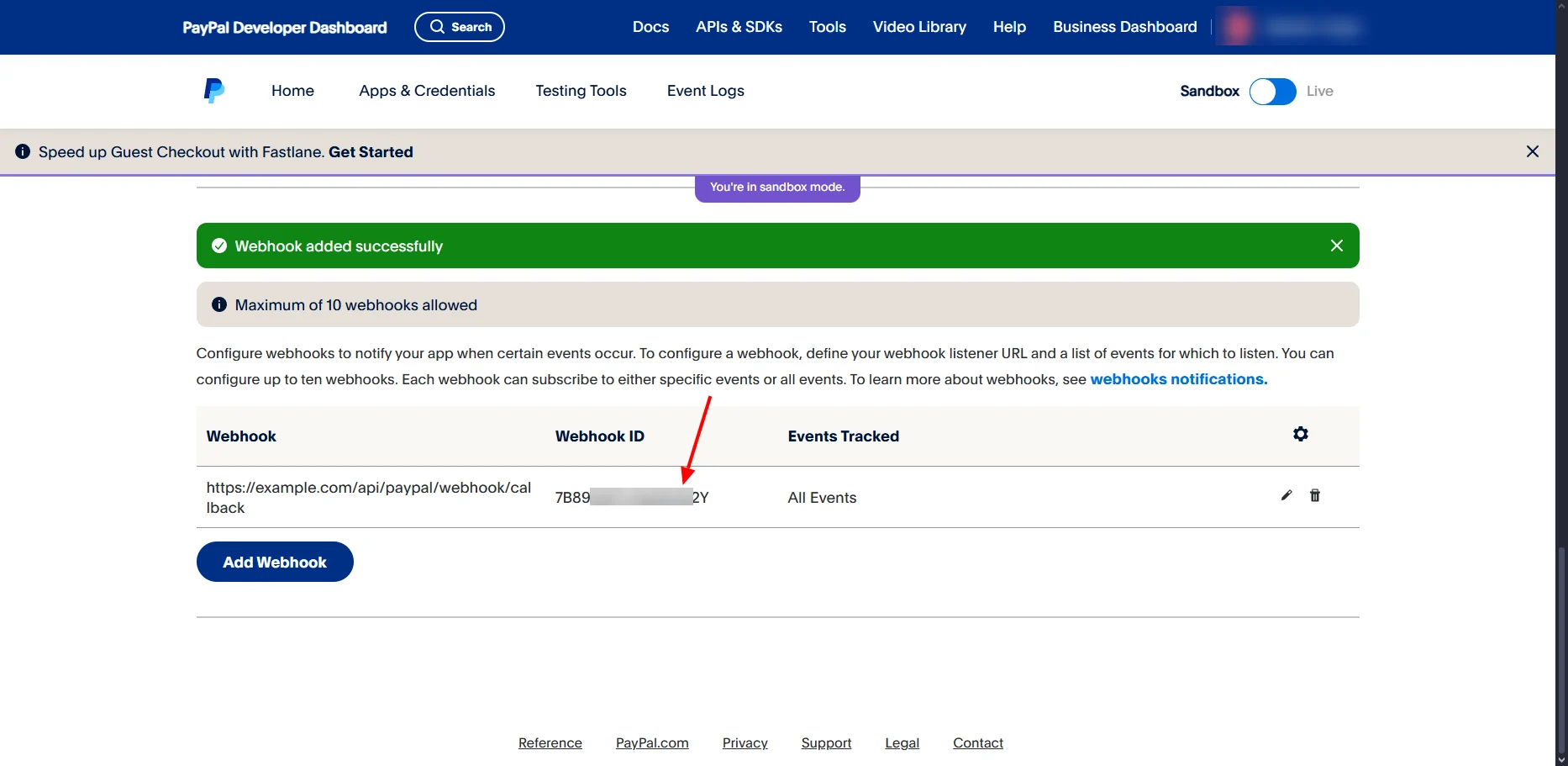
After creating the webhook, confirm that it appears in the webhooks list.
Find your webhook and copy its **Webhook ID**, such as `7B89XXXXXX2Y`. This ID is required for webhook verification.
## Get Webhook ID
After creating the webhook, confirm that it appears in the webhooks list.
Find your webhook and copy its **Webhook ID**, such as `7B89XXXXXX2Y`. This ID is required for webhook verification.
 ## Get Client Credentials
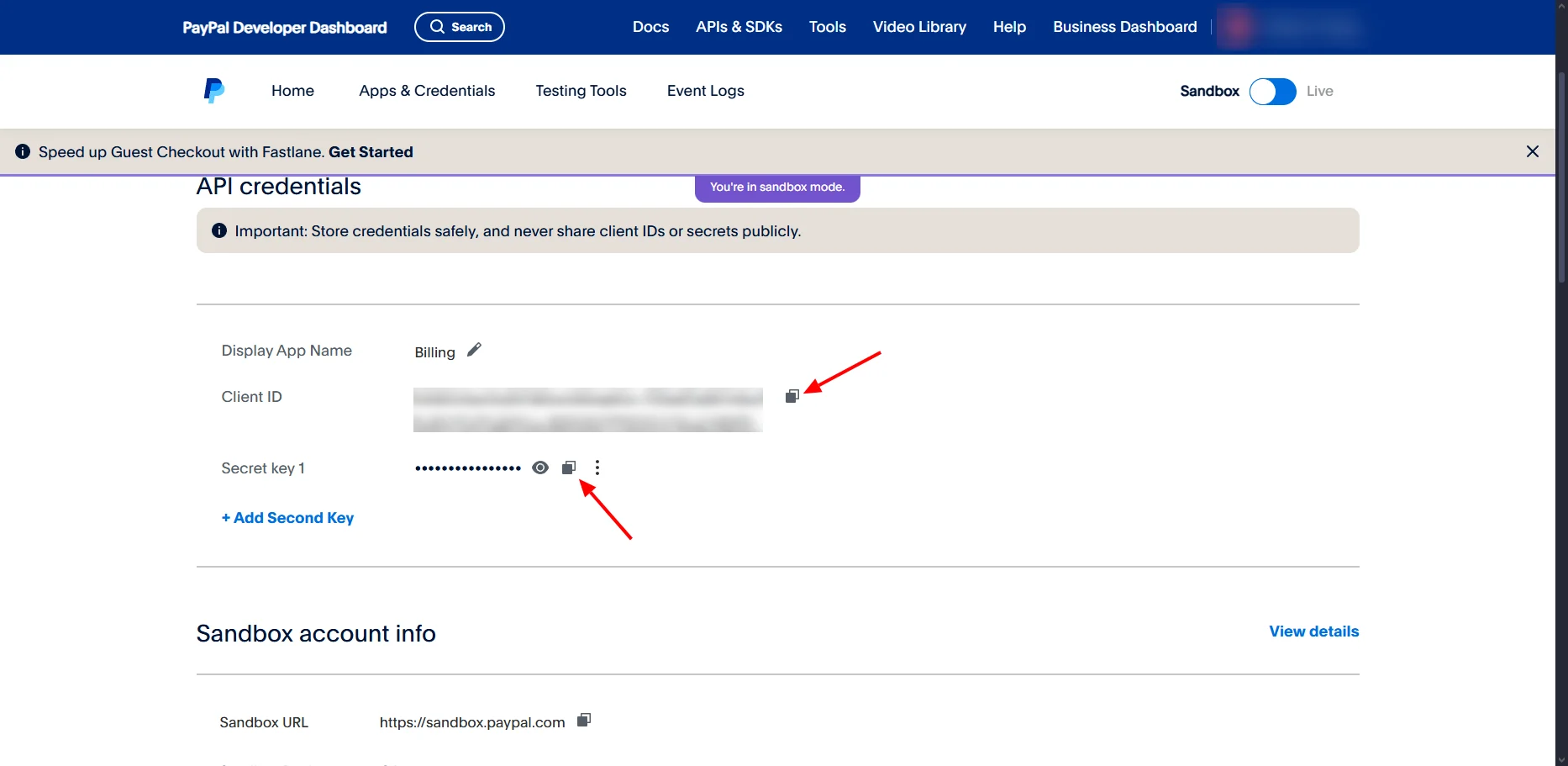
Return to your app dashboard and click the **Credentials** tab.
* **Client ID**: Copy the public identifier.
* **Client Secret**: Copy the private key and keep it secure.
These credentials are required for PayPal API authentication.
## Get Client Credentials
Return to your app dashboard and click the **Credentials** tab.
* **Client ID**: Copy the public identifier.
* **Client Secret**: Copy the private key and keep it secure.
These credentials are required for PayPal API authentication.
 ## Add PayPal to Spartan
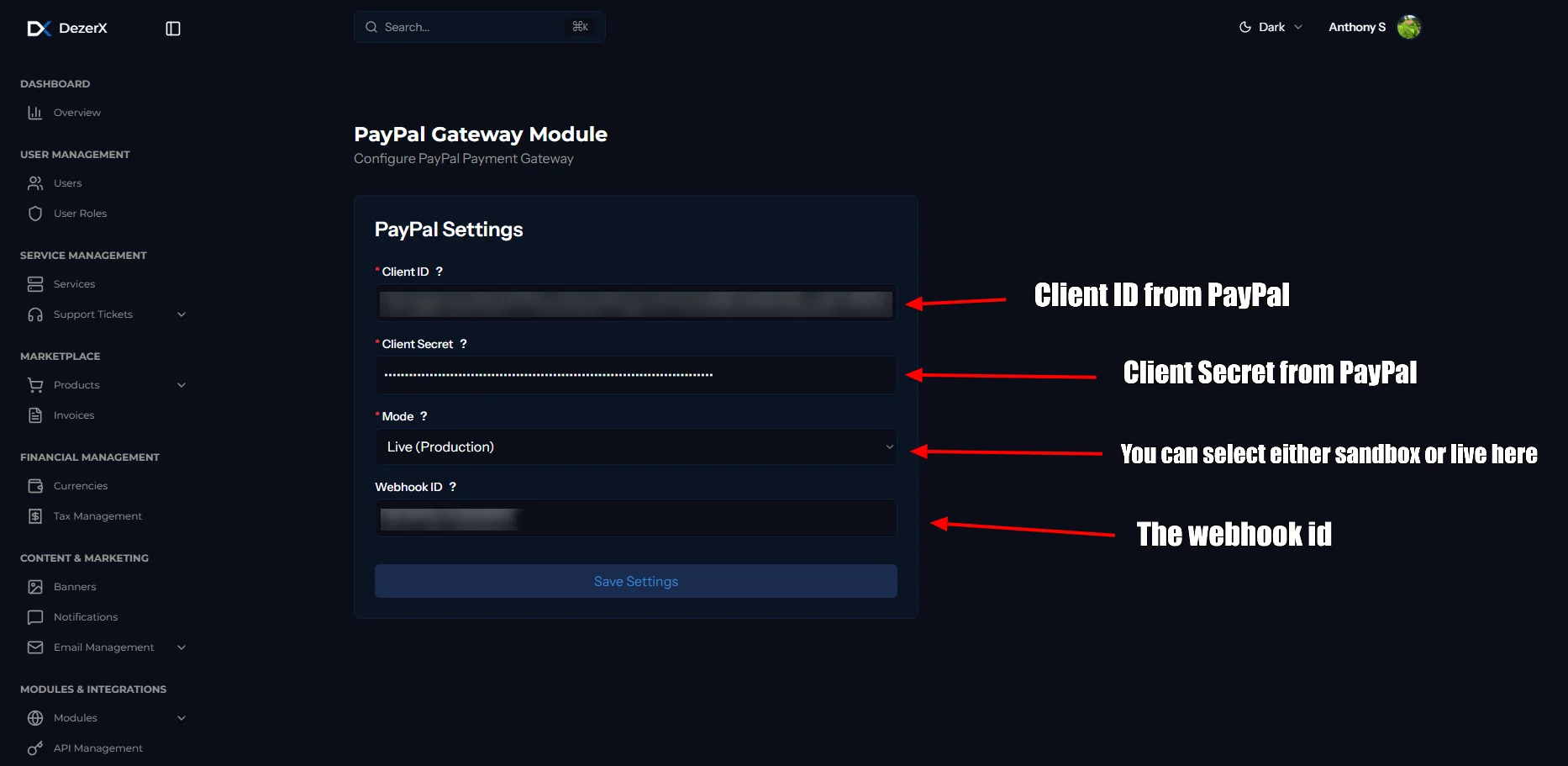
Log in to Spartan as an administrator, then go to **Modules → Gateways** and select **PayPal**, not PayPal IPN.
Enter the PayPal credentials and Webhook ID, then click **Save Settings**.
## Add PayPal to Spartan
Log in to Spartan as an administrator, then go to **Modules → Gateways** and select **PayPal**, not PayPal IPN.
Enter the PayPal credentials and Webhook ID, then click **Save Settings**.
 ## Troubleshooting
### Common Issues
1. **Invalid Credentials**
* Verify Client ID and Client Secret are correct
* Ensure you're using the right environment (sandbox/live)
2. **Webhook Not Receiving Events**
* Check webhook URL is accessible
* Verify webhook is enabled and configured correctly
* Check your server logs for errors
* Make sure your domain is not flagged. ( Check PayPal for more info )
## Troubleshooting
### Common Issues
1. **Invalid Credentials**
* Verify Client ID and Client Secret are correct
* Ensure you're using the right environment (sandbox/live)
2. **Webhook Not Receiving Events**
* Check webhook URL is accessible
* Verify webhook is enabled and configured correctly
* Check your server logs for errors
* Make sure your domain is not flagged. ( Check PayPal for more info )