> ## Documentation Index
> Fetch the complete documentation index at: https://docs.dezerx.com/llms.txt
> Use this file to discover all available pages before exploring further.
# PayPal IPN
> Follow this guide to connect PayPal IPN with Spartan
## Prerequisites
* PayPal Account
* Access to your PayPal account settings
## Enable PayPal Instant Payment Notifications
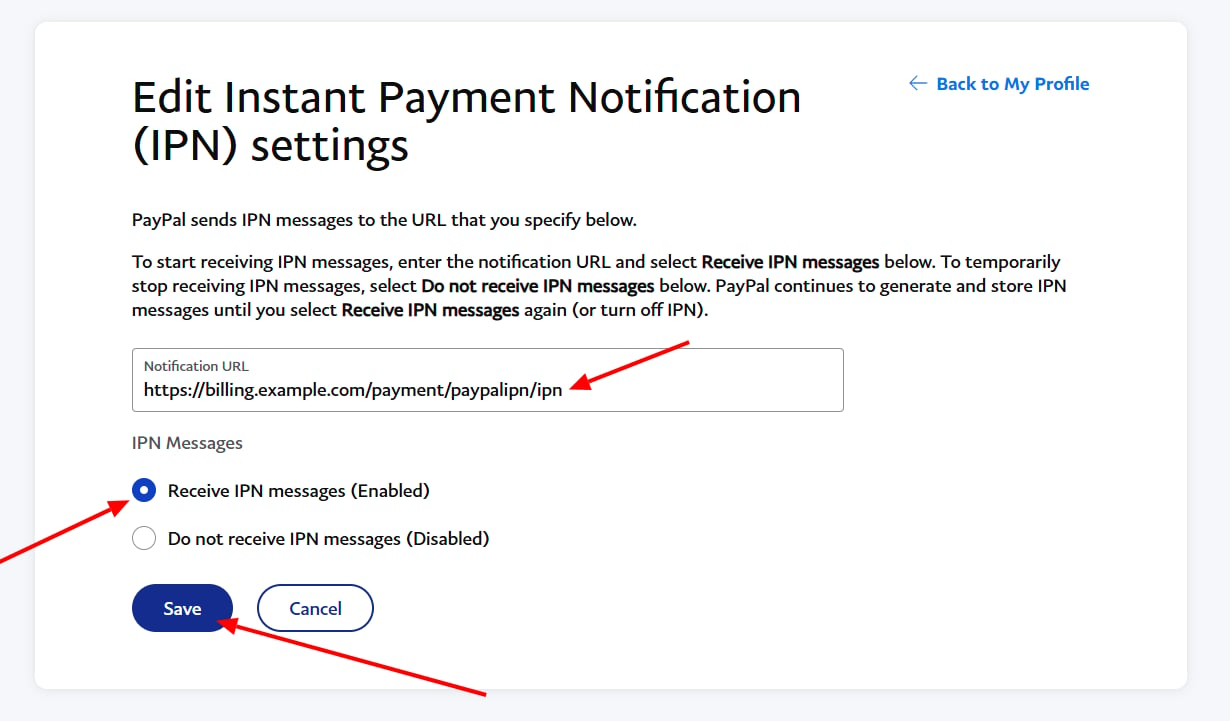
Enable PayPal Instant Payment Notifications in your PayPal account settings.
Set the notification URL to:
```text theme={null}
https://billing.example.com/payment/paypalipn/ipn
```
Replace `billing.example.com` with your billing domain.
 ## Configure PayPal IPN in Spartan
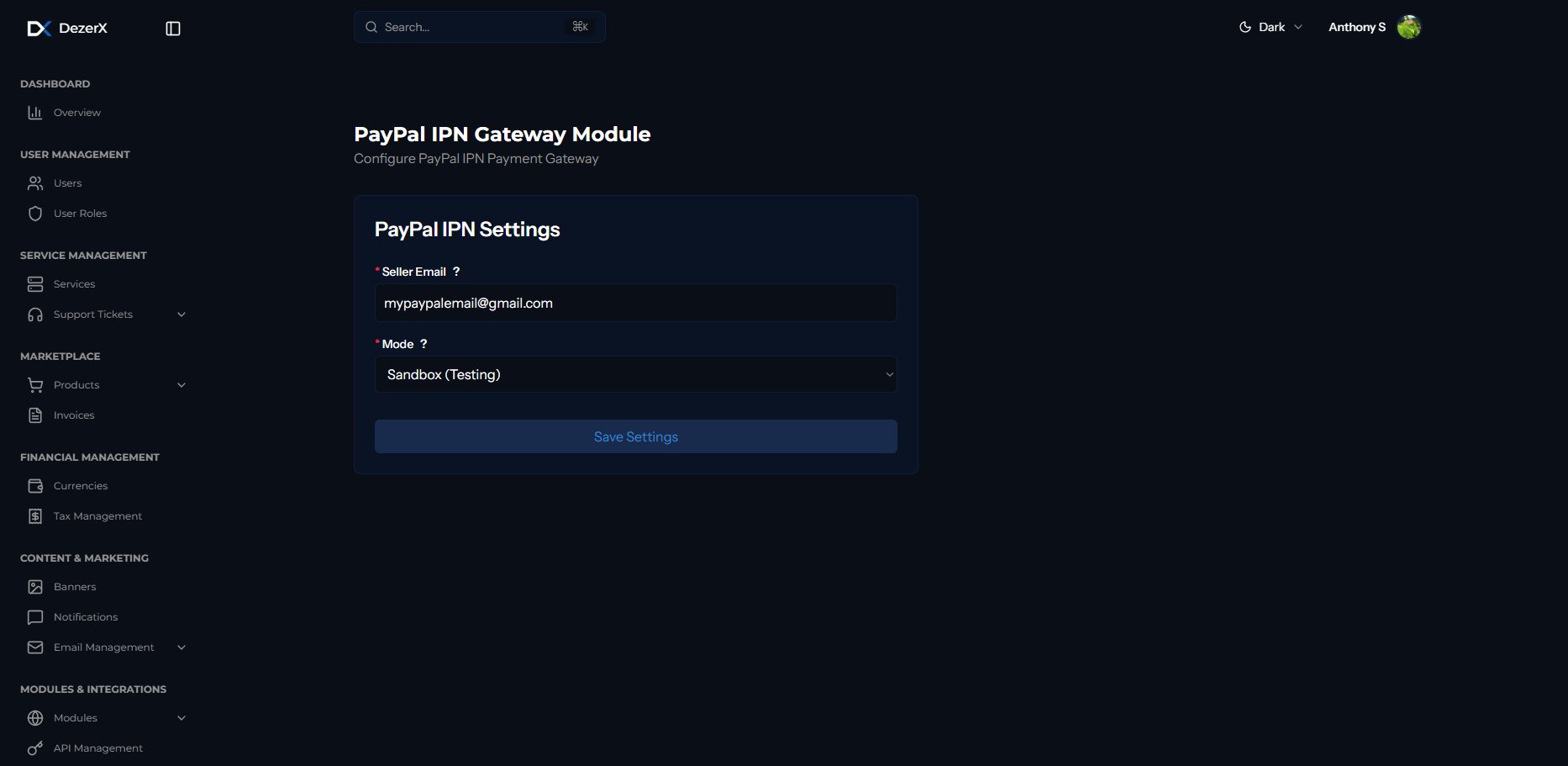
Log in to Spartan with an administrator account, then go to **Modules → Payment Gateways → PayPal IPN**.
Enter your PayPal email address, select whether the account uses sandbox or live mode, and save the settings.
## Configure PayPal IPN in Spartan
Log in to Spartan with an administrator account, then go to **Modules → Payment Gateways → PayPal IPN**.
Enter your PayPal email address, select whether the account uses sandbox or live mode, and save the settings.