> ## Documentation Index
> Fetch the complete documentation index at: https://docs.dezerx.com/llms.txt
> Use this file to discover all available pages before exploring further.
# Vipps Gateway
> Follow this guide to connect Vipps MobilePay with Spartan
## Prerequisites
* A Vipps MobilePay business account
* A test or production sales unit
* Developer access to the sales unit
If you cannot see **For developers** in the business portal, ask an administrator to grant you Developer access.
## Get Your Vipps MobilePay Credentials
Log in to the [Vipps MobilePay business portal](https://portal.vippsmobilepay.com).
Click **For developers** in the sidebar to view your sales units.
Select **Test** for sandbox payments or **Production** for live payments.
The selected environment must match the **Mode** configured in Spartan.
Find the sales unit you want to connect and click **Show keys**.
Copy the following values:
| Spartan field | Vipps MobilePay value |
| ---------------------- | ----------------------------------------------------------- |
| Client ID | `client_id` for the selected sales unit |
| Client Secret | `client_secret` for the selected sales unit |
| Subscription Key | Either the primary or secondary `Ocp-Apim-Subscription-Key` |
| Merchant Serial Number | The MSN displayed for the selected sales unit |
The primary and secondary subscription keys are interchangeable. Keep all credentials private and regenerate them immediately if they are exposed.
## Configure Vipps in Spartan
Log in to the Spartan admin area, then go to **Modules → Payments → Vipps Gateway**.
Paste the **Client ID**, **Client Secret**, **Subscription Key**, and **Merchant Serial Number** from the same Vipps MobilePay sales unit.
* **Mode**: Select **Sandbox** for test keys or **Production** for live keys.
* **Vipps Currency**: Select the currency supported by your sales unit.
* **Auto Capture**: Enable this to capture authorized payments automatically.
* **Managed Webhook**: Spartan registers and stores the Vipps webhook when the settings are saved.
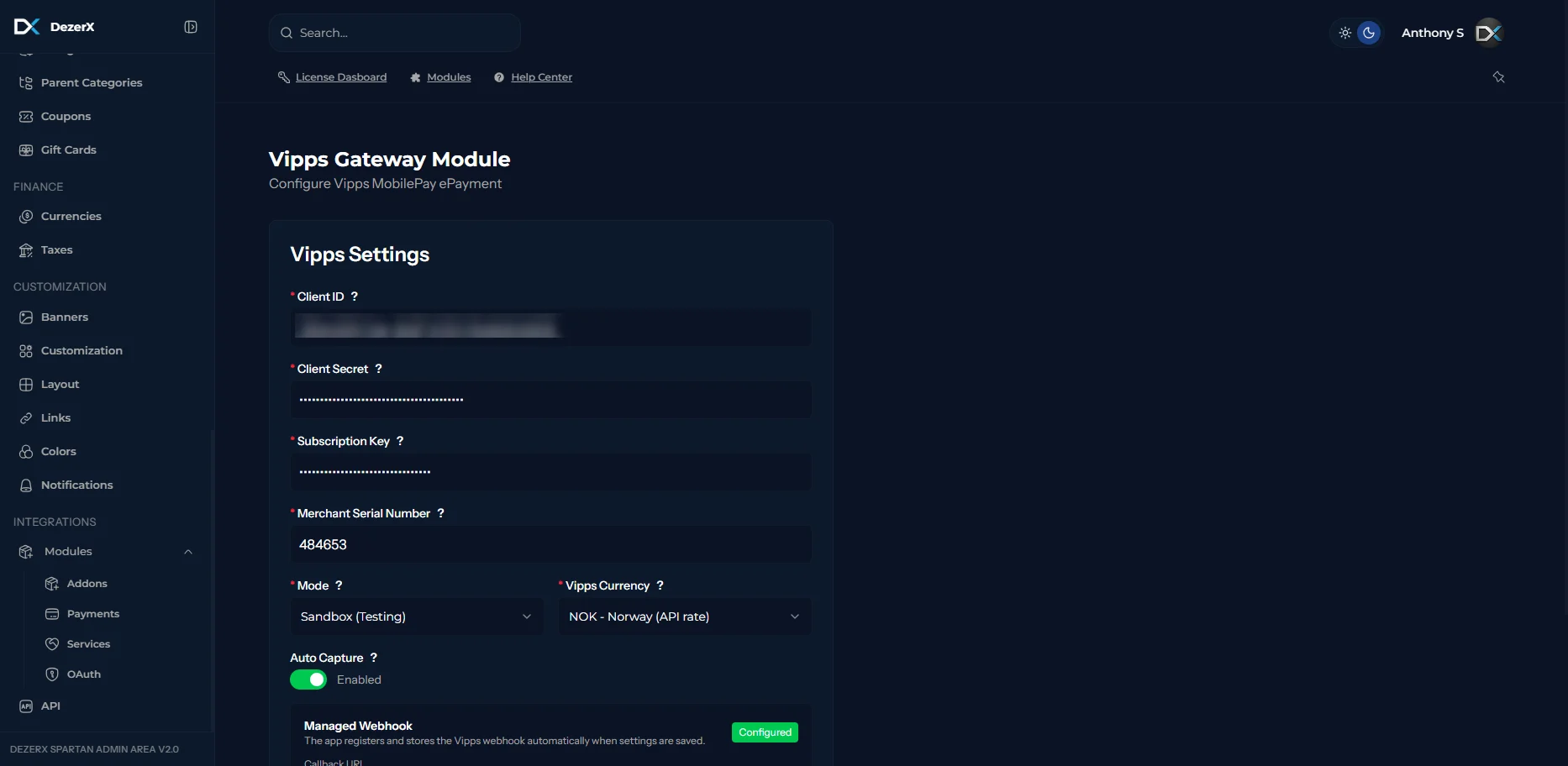 Save the gateway settings and confirm that the managed webhook shows as configured.
## Troubleshooting
* Confirm that all four credentials belong to the same sales unit.
* Confirm that the Spartan mode matches the environment from which the keys were copied.
* If authentication fails after regenerating credentials, update Spartan with the new values.
* If **For developers** is unavailable, verify your business portal permissions.
## Official Resources
* [Vipps MobilePay API keys](https://developer.vippsmobilepay.com/docs/knowledge-base/api-keys/)
* [Vipps MobilePay business portal](https://developer.vippsmobilepay.com/docs/knowledge-base/portal/)
Save the gateway settings and confirm that the managed webhook shows as configured.
## Troubleshooting
* Confirm that all four credentials belong to the same sales unit.
* Confirm that the Spartan mode matches the environment from which the keys were copied.
* If authentication fails after regenerating credentials, update Spartan with the new values.
* If **For developers** is unavailable, verify your business portal permissions.
## Official Resources
* [Vipps MobilePay API keys](https://developer.vippsmobilepay.com/docs/knowledge-base/api-keys/)
* [Vipps MobilePay business portal](https://developer.vippsmobilepay.com/docs/knowledge-base/portal/)