> ## Documentation Index
> Fetch the complete documentation index at: https://docs.dezerx.com/llms.txt
> Use this file to discover all available pages before exploring further.
# HestiaCP
> Follow this guide to connect HestiaCP with Spartan
## Configuring HestiaCP.
Log in to your HestiaCP admin panel using your administrator credentials.
Go to **Server → Settings** in the HestiaCP admin panel and find the API settings section.
Enable the API functionality if it is not already enabled, then note your HestiaCP URL (usually `https://your-hestia-domain.com`).
## Whitelist Spartan IP Address
To allow DezerX to connect to your HestiaCP instance, you need to whitelist the DezerX Spartan's server's IP address:
Check your server's public IP address. DezerX will use this address to make API calls to HestiaCP.
In the HestiaCP admin panel, go to **Server → Configuration**, add your DezerX server's IP address to the allowed list, and ensure it is permitted for API access.
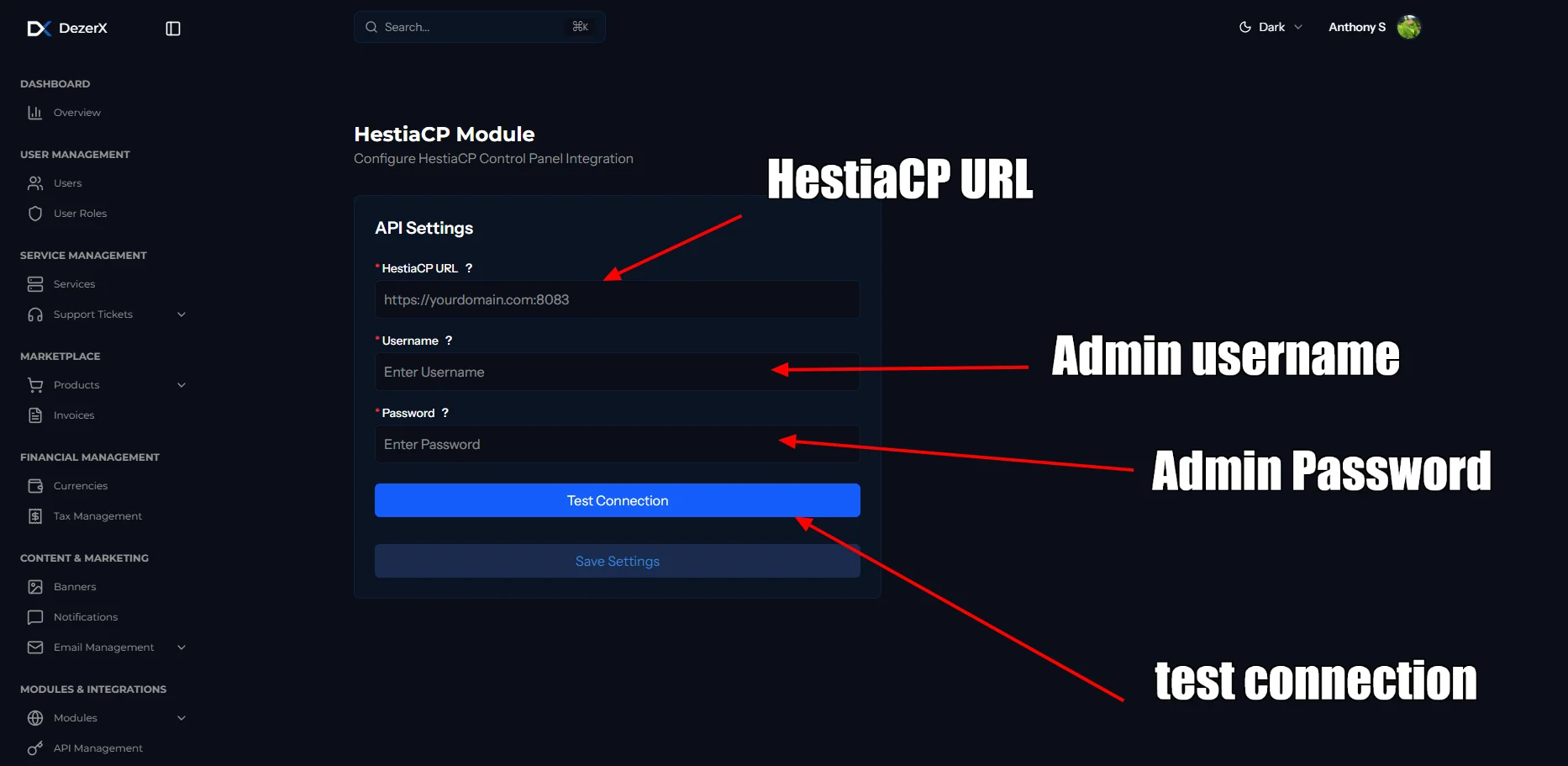
## Configure the HestiaCP Module
Go to **Admin → Modules → HestiaCP** and enter the required connection details.