> ## Documentation Index
> Fetch the complete documentation index at: https://docs.dezerx.com/llms.txt
> Use this file to discover all available pages before exploring further.
# Pelican
> Follow this docs to setup Pelican!
## Configuring Pelican.
Open the Pelican configuration file by running the following command:
```bash theme={null}
sudo nano /etc/pelican/config.yml
```
Find the following line in the configuration file:
```yaml theme={null}
allowed_origins: []
```
Modify it to include the allowed origins for Spartan:
```yaml theme={null}
allowed_origins:
- https://dash.example.com
- http://dash.example.com
```
Replace `https://dash.example.com` and `http://dash.example.com` with your actual dashboard URLs.
After saving the configuration changes, restart the Wings service to apply them:
```bash theme={null}
sudo systemctl restart wings
```
## Configure Pelican in Spartan
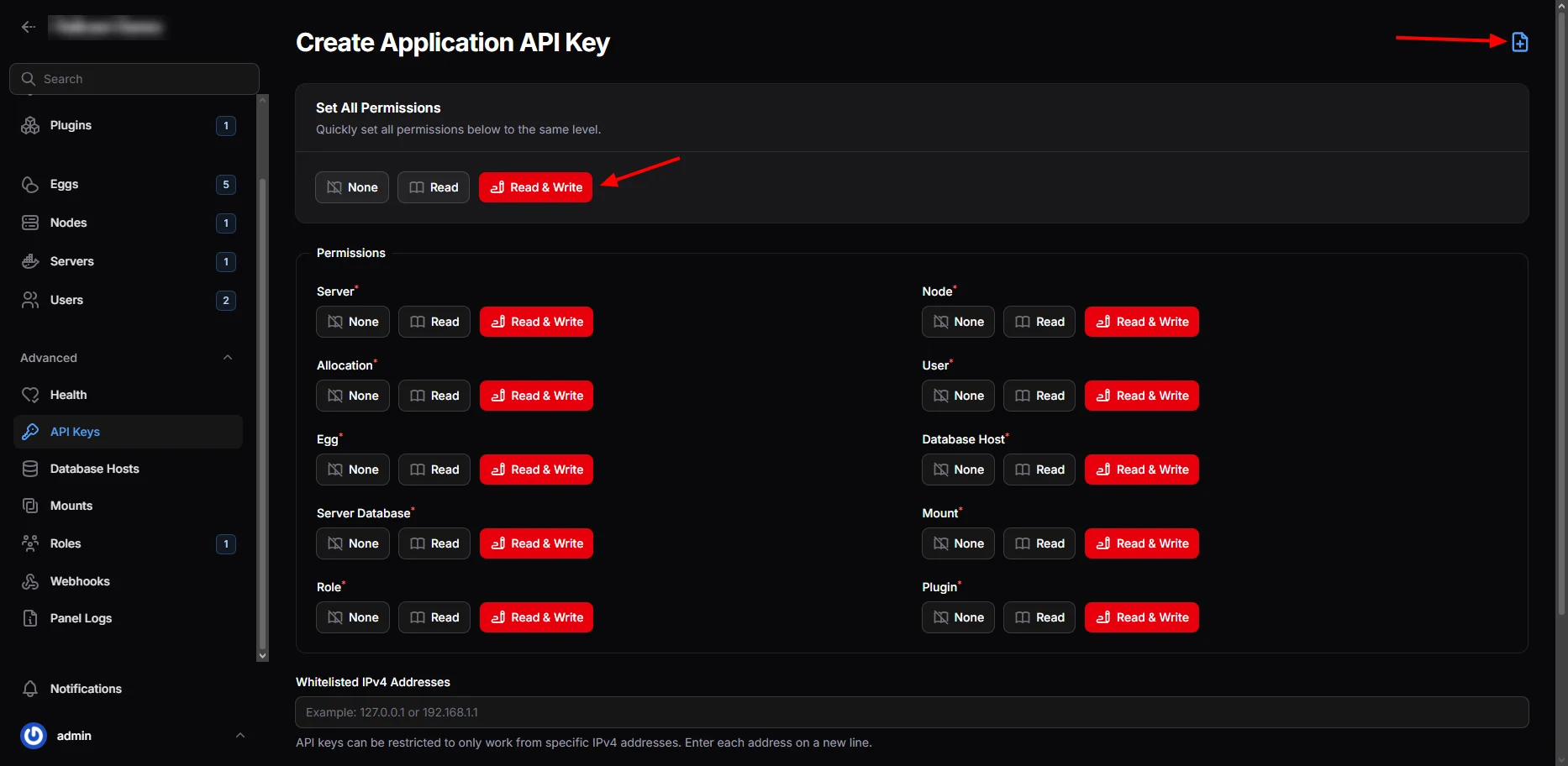
* In your Pelican admin panel, navigate to the Application API section.
* Generate a new API key with appropriate permissions.
* Copy the generated key.
 * Navigate to your Pterodactyl account settings.
* Go to the API Credentials section.
* Create a new client API key.
* Copy the generated key.
* Navigate to your Pterodactyl account settings.
* Go to the API Credentials section.
* Create a new client API key.
* Copy the generated key.
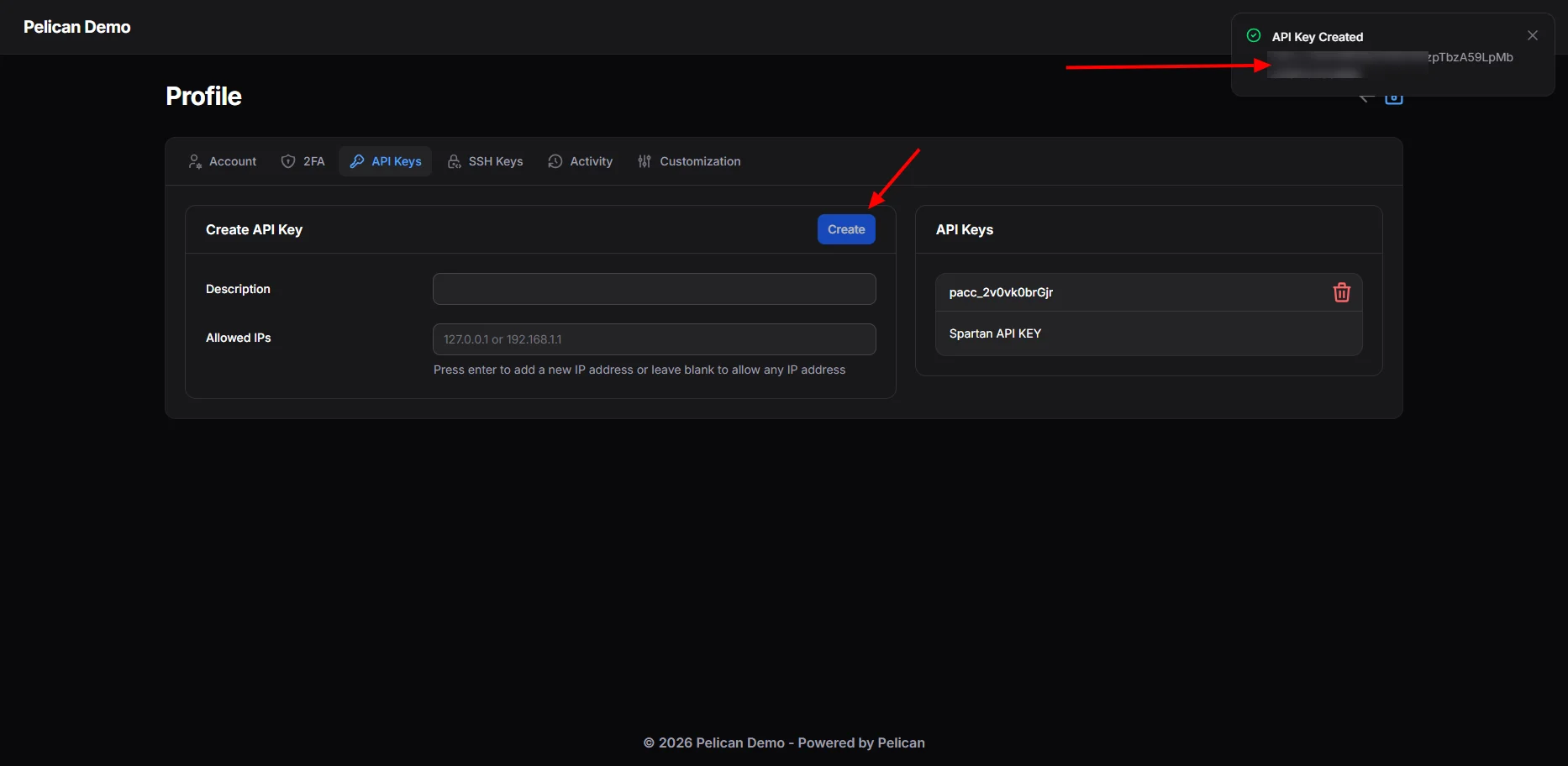 * Paste the Application API key in the designated field.
* Paste the Client API key in the designated field.
* Enter your Pterodactyl panel URL.
* Click the **Test Connection** button to verify the setup.
* Paste the Application API key in the designated field.
* Paste the Client API key in the designated field.
* Enter your Pterodactyl panel URL.
* Click the **Test Connection** button to verify the setup.
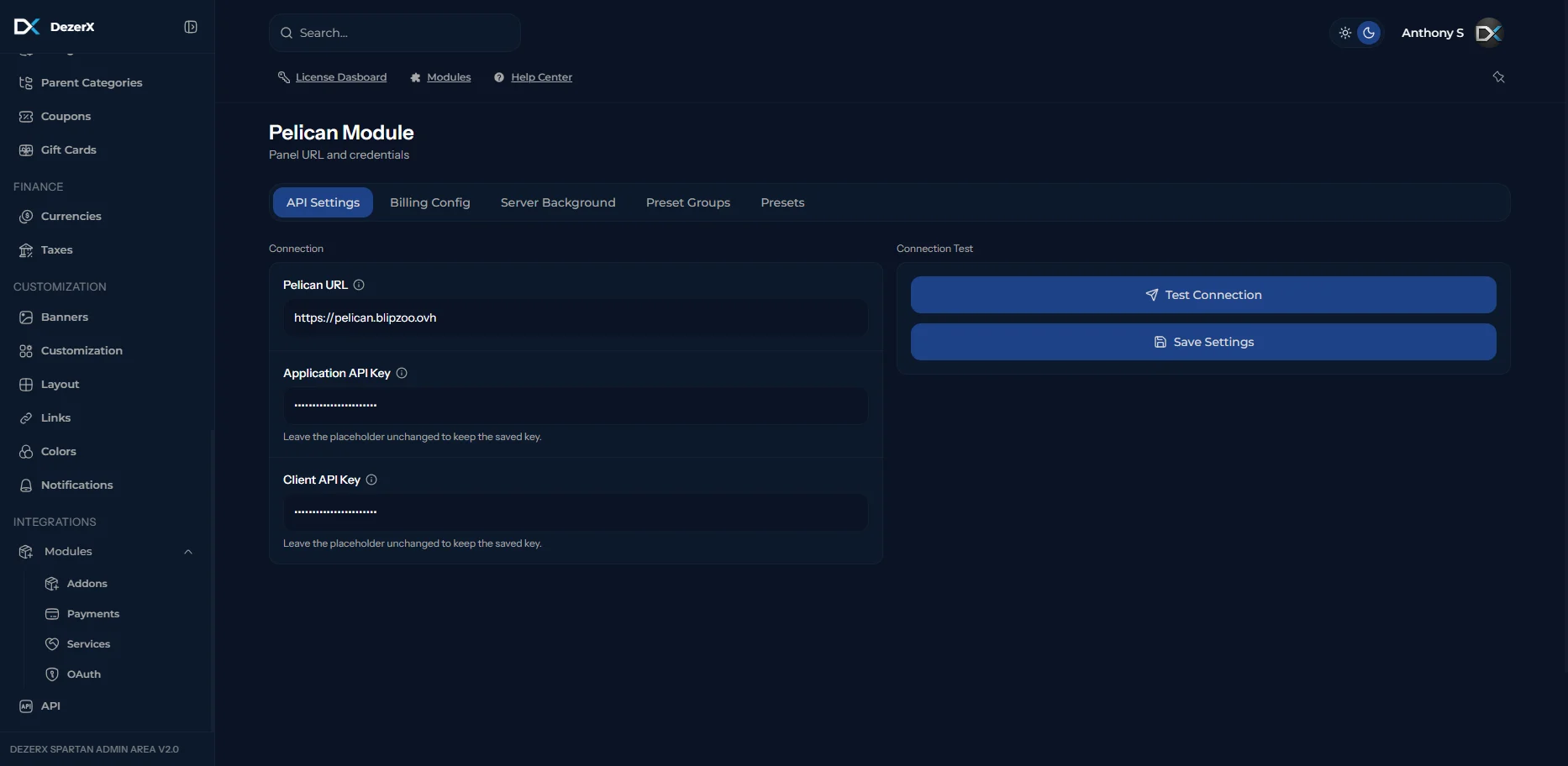 Use the product configuration options shown below:
 ## Troubleshooting
If you encounter any issues:
* Verify that your API keys have the correct permissions
* Ensure your Pterodactyl panel URL is correct and accessible
* Check that the `allowed_origins` configuration includes your Spartan dashboard URL
* Make sure the Wings service has been restarted after configuration changes
## Troubleshooting
If you encounter any issues:
* Verify that your API keys have the correct permissions
* Ensure your Pterodactyl panel URL is correct and accessible
* Check that the `allowed_origins` configuration includes your Spartan dashboard URL
* Make sure the Wings service has been restarted after configuration changes