> ## Documentation Index
> Fetch the complete documentation index at: https://docs.dezerx.com/llms.txt
> Use this file to discover all available pages before exploring further.
# Proxmox
> Follow this guide to connect Proxmox with Spartan.
## Configuring Proxmox.
Log in to your Proxmox panel and navigate to the API token creation page.
Make sure **Separate Privileges** is enabled.
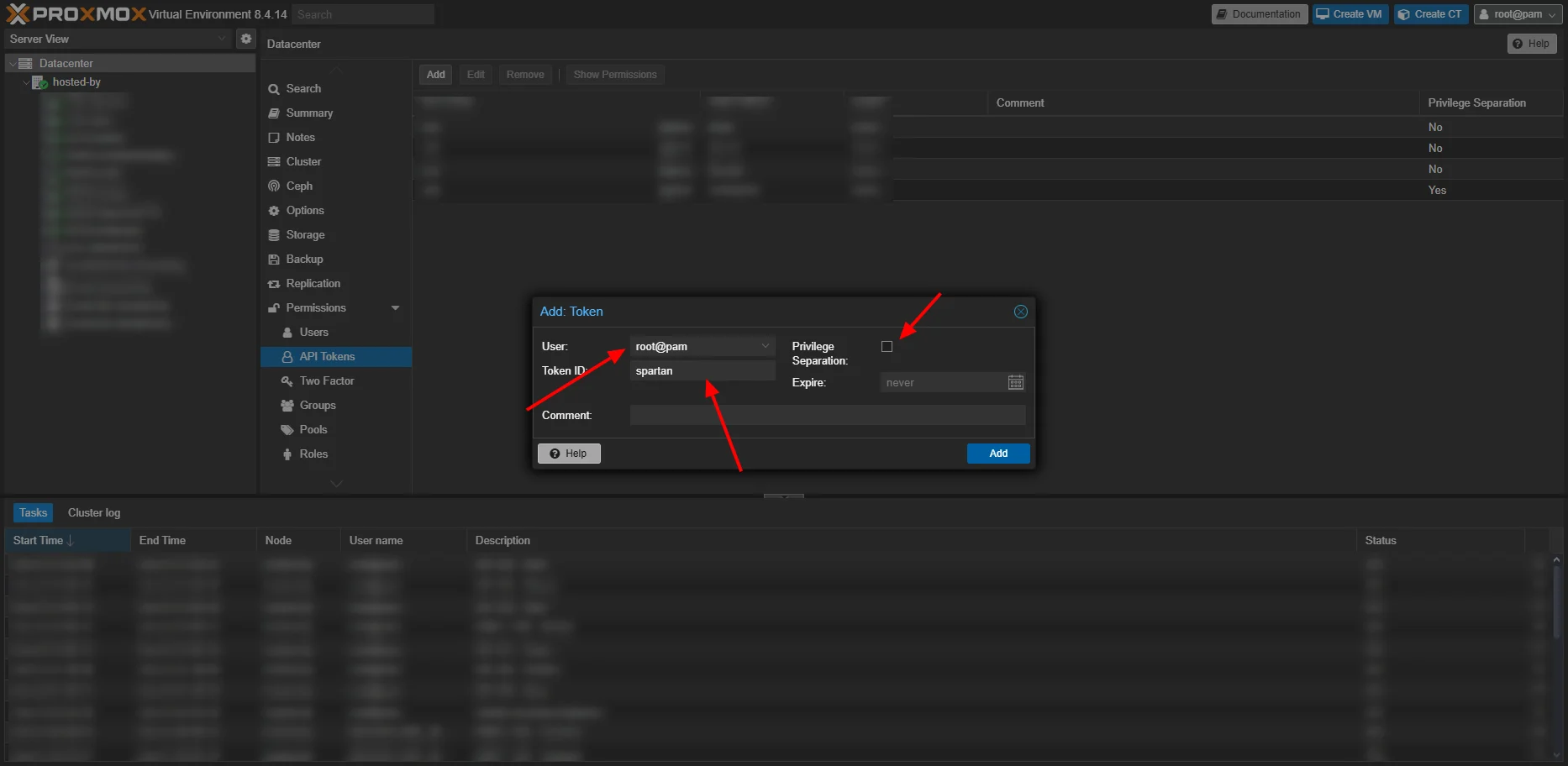 Click **Next**, then copy both the **User Token** and **Secret**.
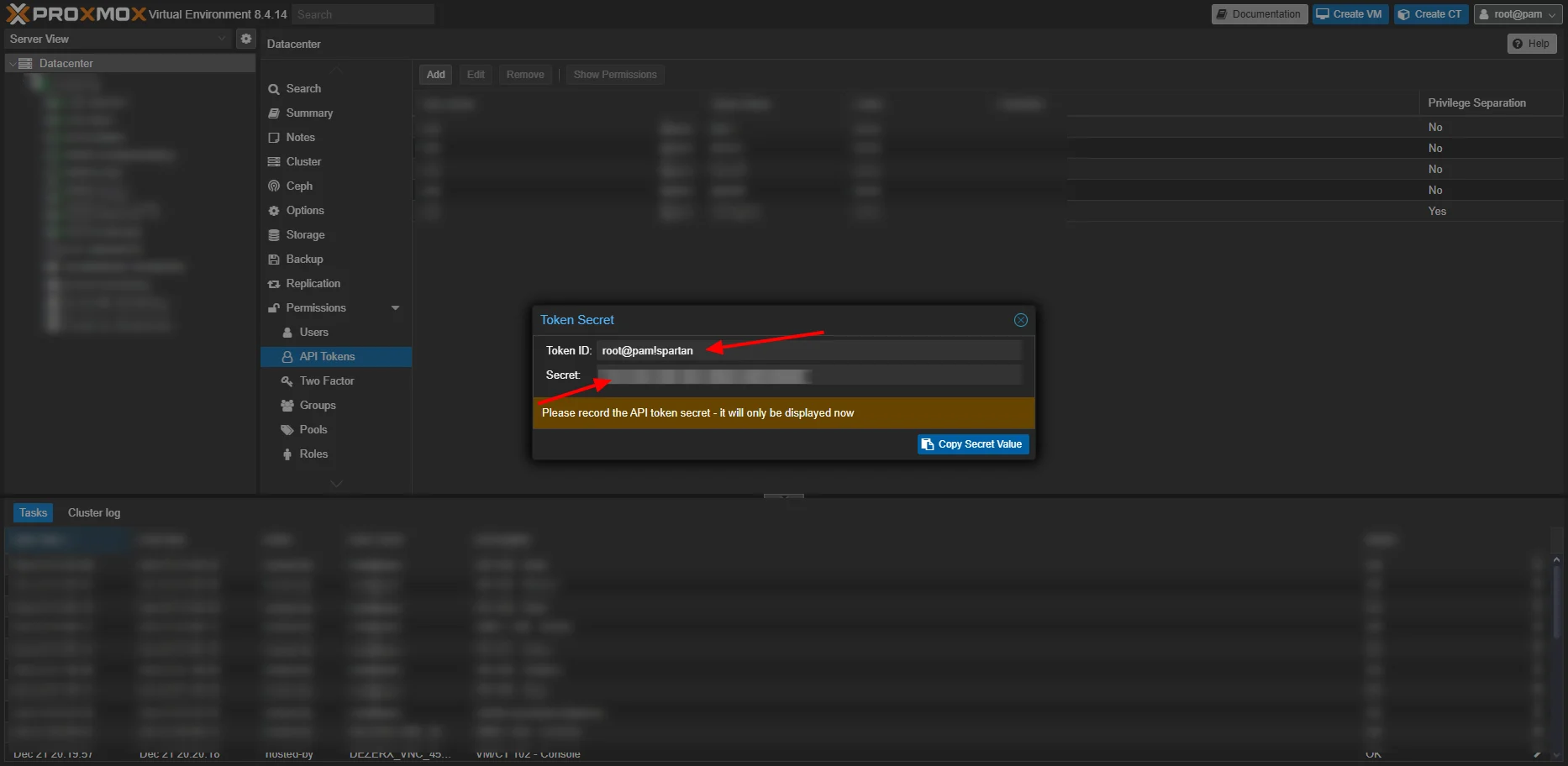 ## Configure DezerX
Open the Proxmox module in the DezerX Admin Panel.
Create a new **Location** using your Proxmox API token and secret.
## Configure DezerX
Open the Proxmox module in the DezerX Admin Panel.
Create a new **Location** using your Proxmox API token and secret.
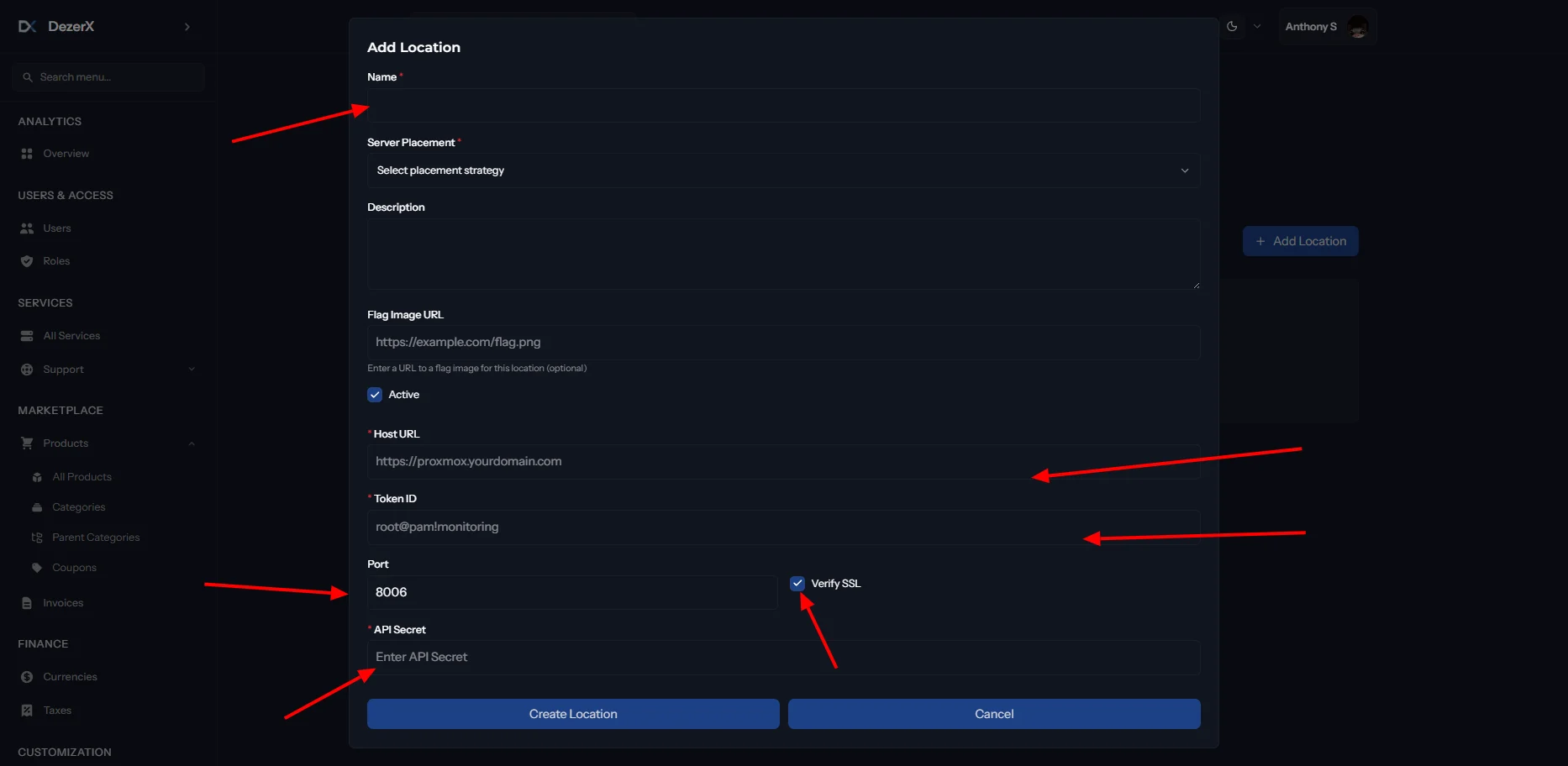 Once saved, your DezerX setup is ready to connect to Proxmox.
Please make sure your proxmox is on the same domain as your billing and has SSL.
Once saved, your DezerX setup is ready to connect to Proxmox.
Please make sure your proxmox is on the same domain as your billing and has SSL.