> ## Documentation Index
> Fetch the complete documentation index at: https://docs.dezerx.com/llms.txt
> Use this file to discover all available pages before exploring further.
# cPanel
> Follow this guide to connect cPanel with Spartan
## Configuring cPanel.
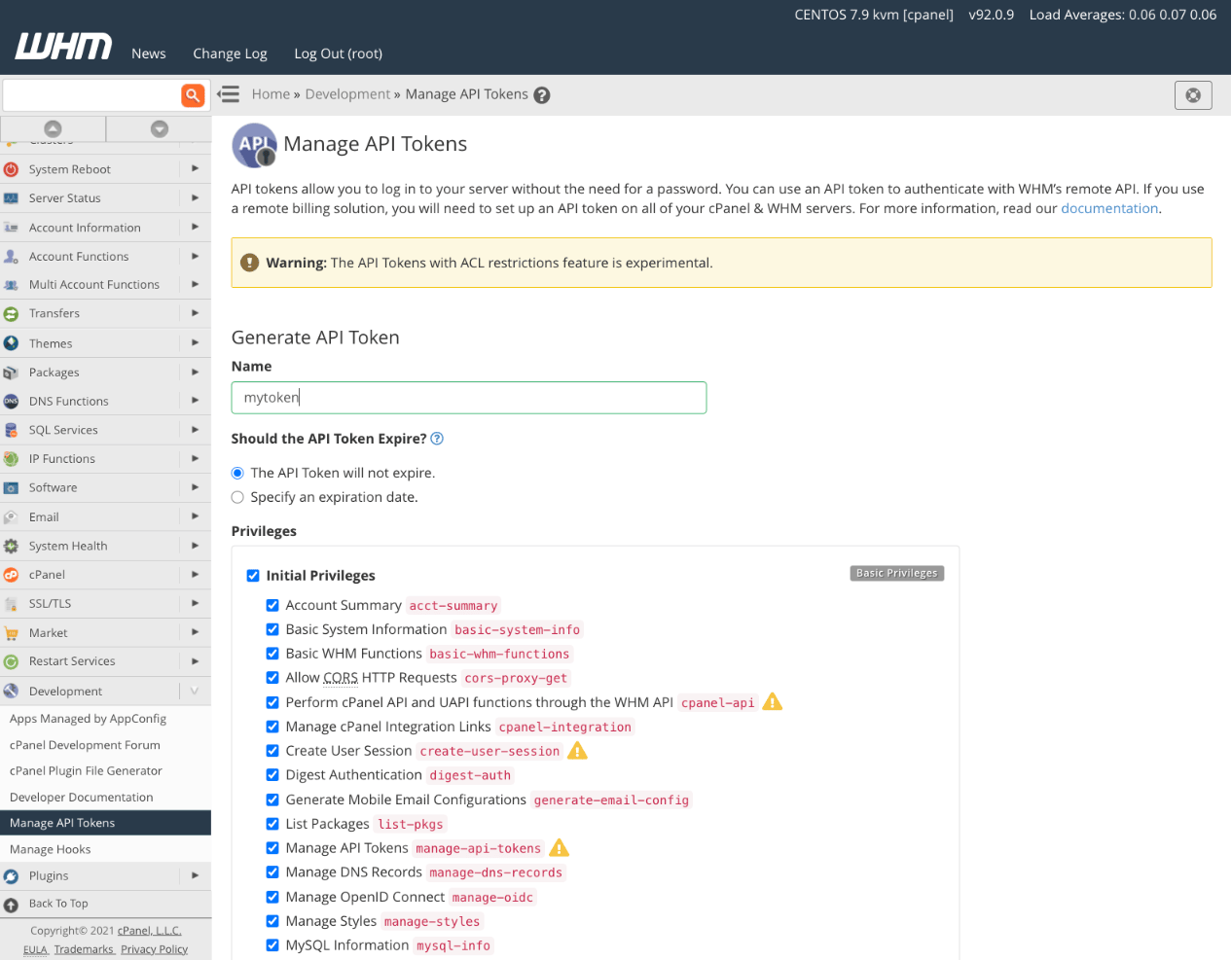
Log in to WHM using your administrator credentials.
Open the **Manage API Tokens** tab and create or copy your API credentials.
 ## Configure API in DezerX Spartan
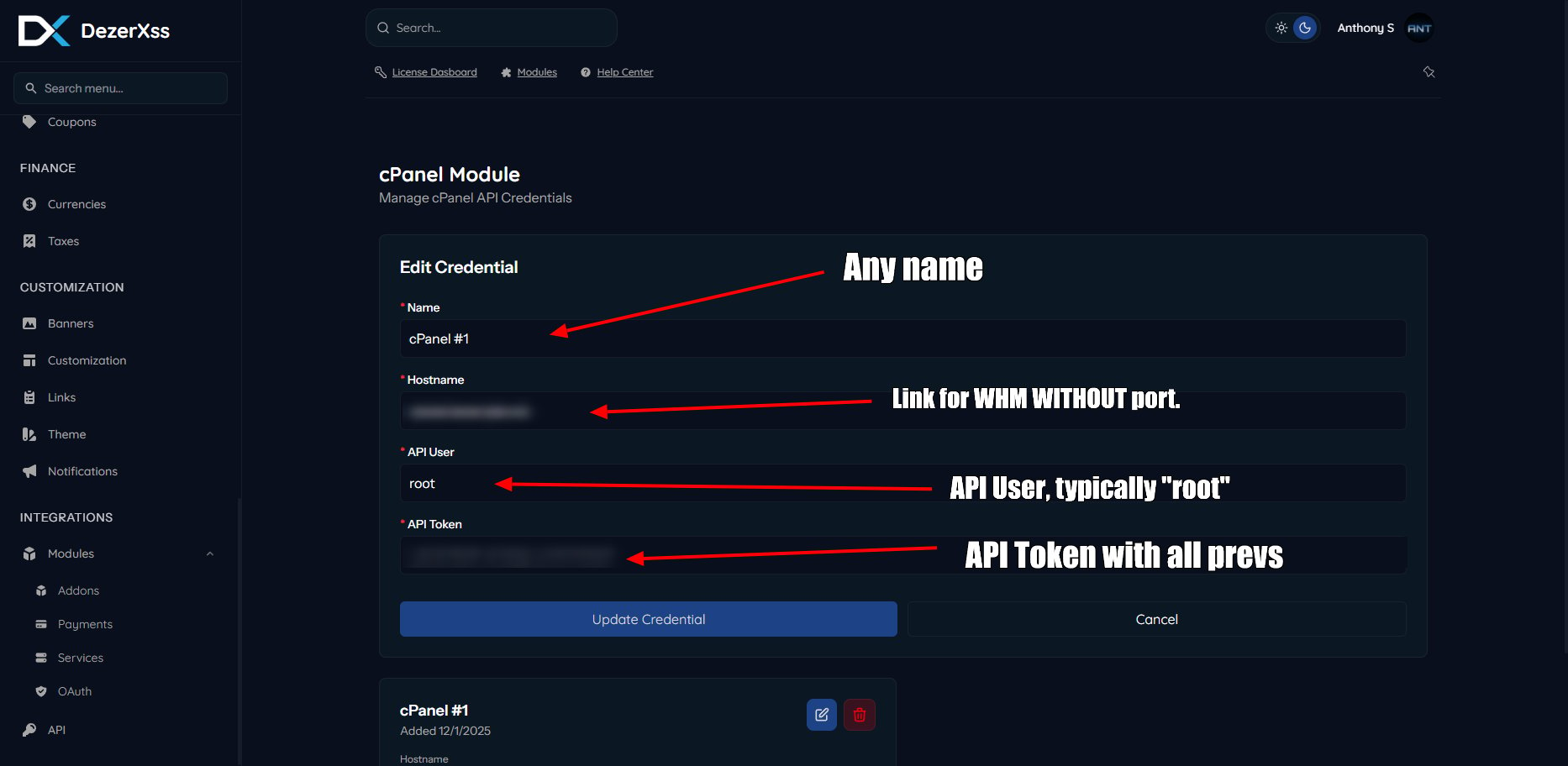
Log in to your market with an administrator account, then go to **Admin → Modules → Services**.
Select **cPanel**, create a server, and fill in the required details.
## Configure API in DezerX Spartan
Log in to your market with an administrator account, then go to **Admin → Modules → Services**.
Select **cPanel**, create a server, and fill in the required details.
 ## Configure product in DezerX Spartan
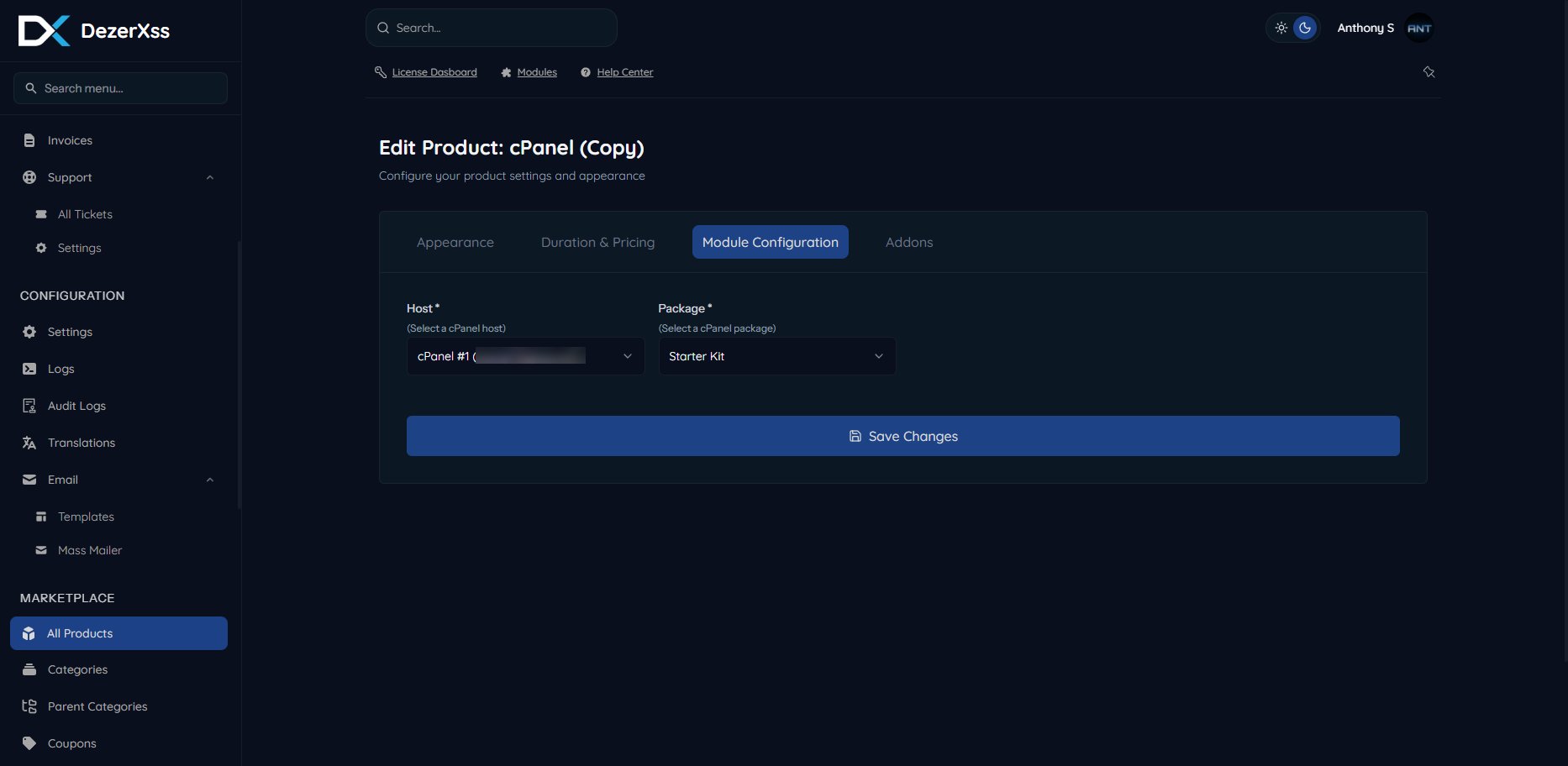
Go to **Products** and create a product using the cPanel module.
Select a server (cPanel host) and a package from the dropdown menus.
## Configure product in DezerX Spartan
Go to **Products** and create a product using the cPanel module.
Select a server (cPanel host) and a package from the dropdown menus.