Colors, corner roundness, dark mode, theme.css tokens and addon pages
Since 2026.11.2 the admin area has one theme, Admin Modern. There is no admin theme switch any more. Pages that have no Admin Modern version yet fall back to the older layout automatically. If you want to change how the customer area looks, see client themes.

Change it without code
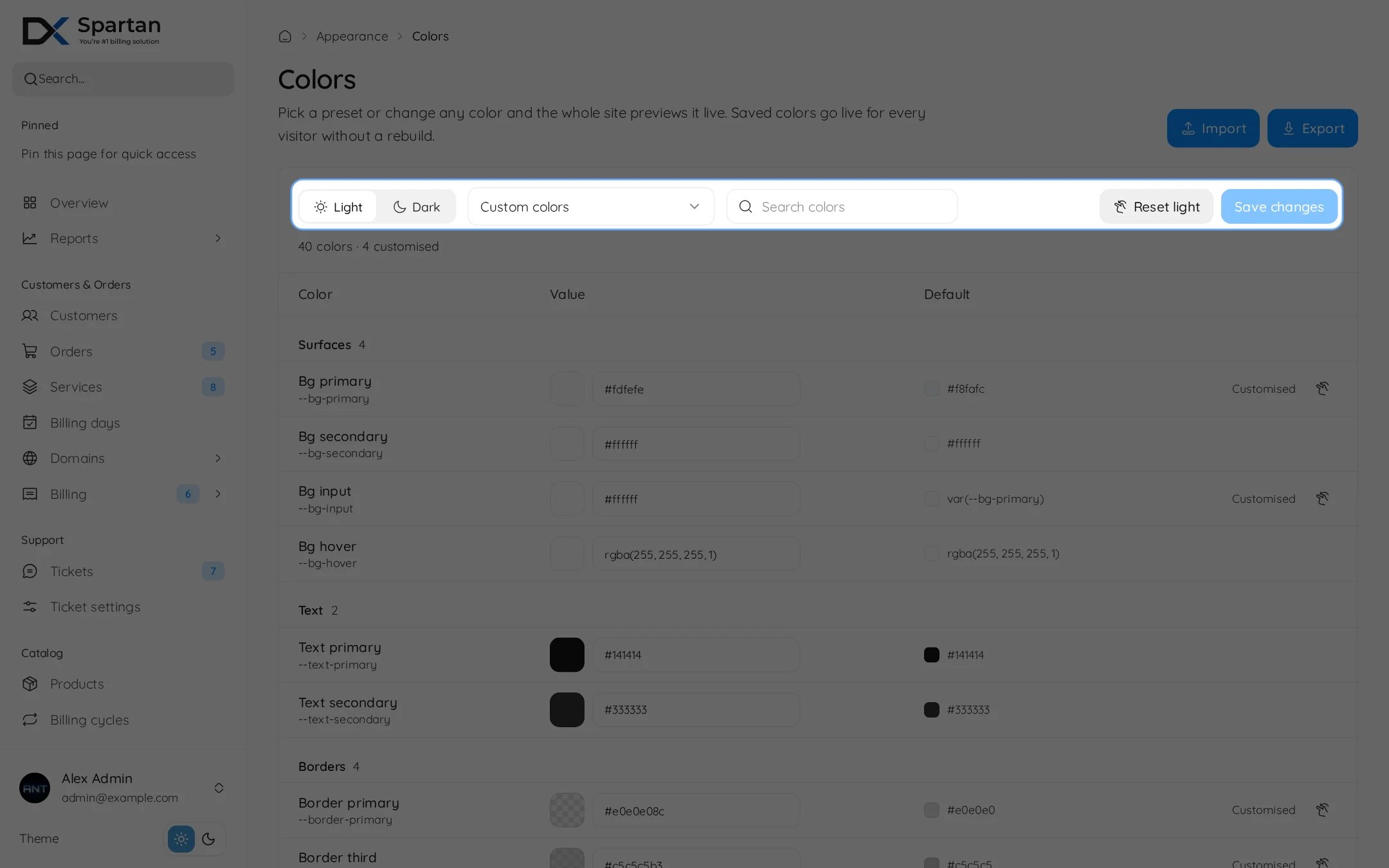
The Colors page with light and dark switch, presets and every color
1

Open the Colors page

Go to Appearance, Colors in the admin menu. Pick a preset or change any color. The whole site previews it live.
2

Do light and dark separately

The switch at the top edits the light or the dark palette. Each color has its own default and a reset button.
3

Save

Saved colors go live for every visitor and every admin without a rebuild. Import and Export move a palette between installs.
The same colors also style the customer area, so one palette covers both.
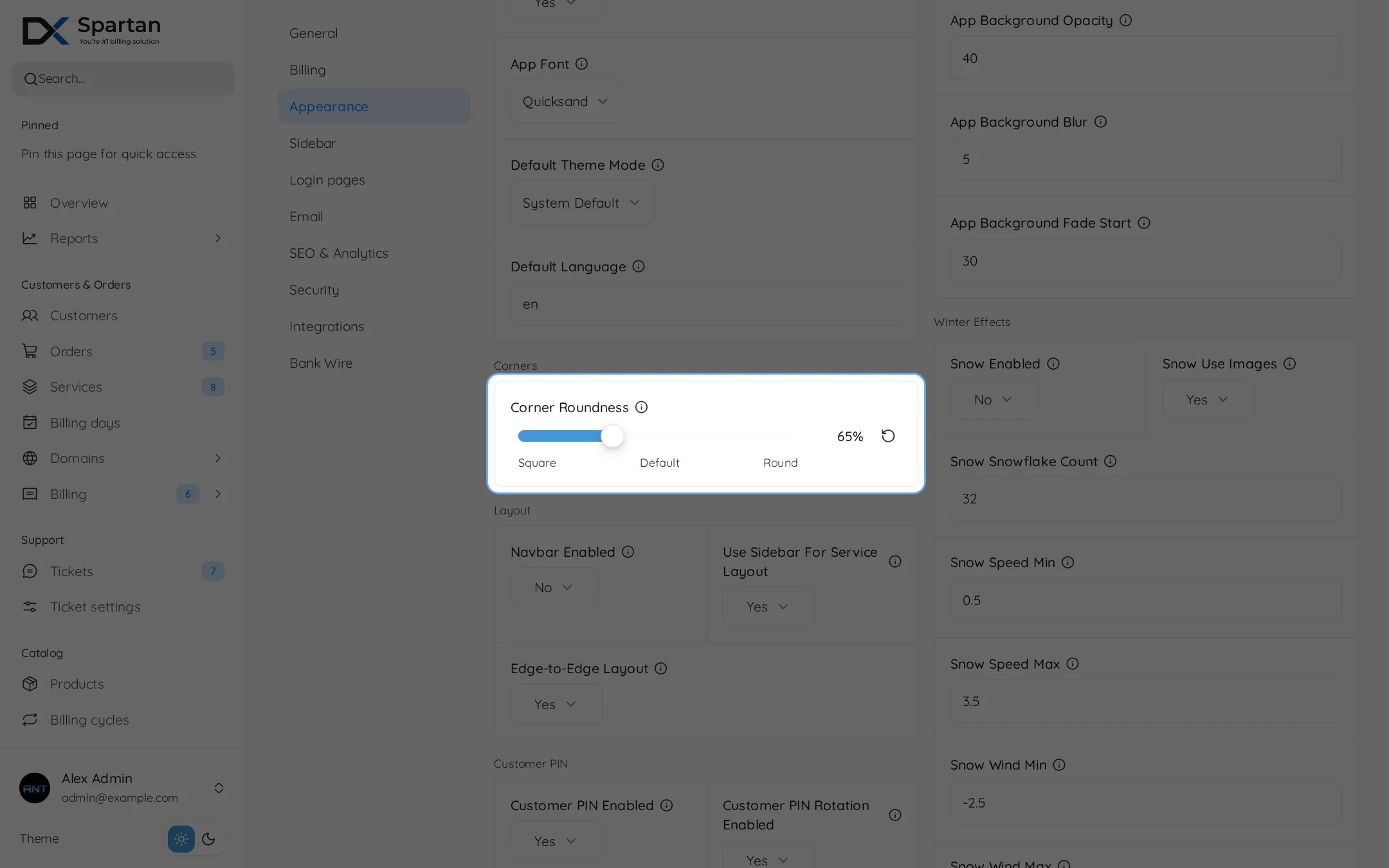
Settings, Appearance, Corners
Corner roundness is under Settings, Appearance, Corners. It goes from 0 to 200 percent and 100 is the default. The setting is ui_corner_radius and it scales every rounded corner in the admin and in the customer area. The change previews while you drag the slider.

Before and after
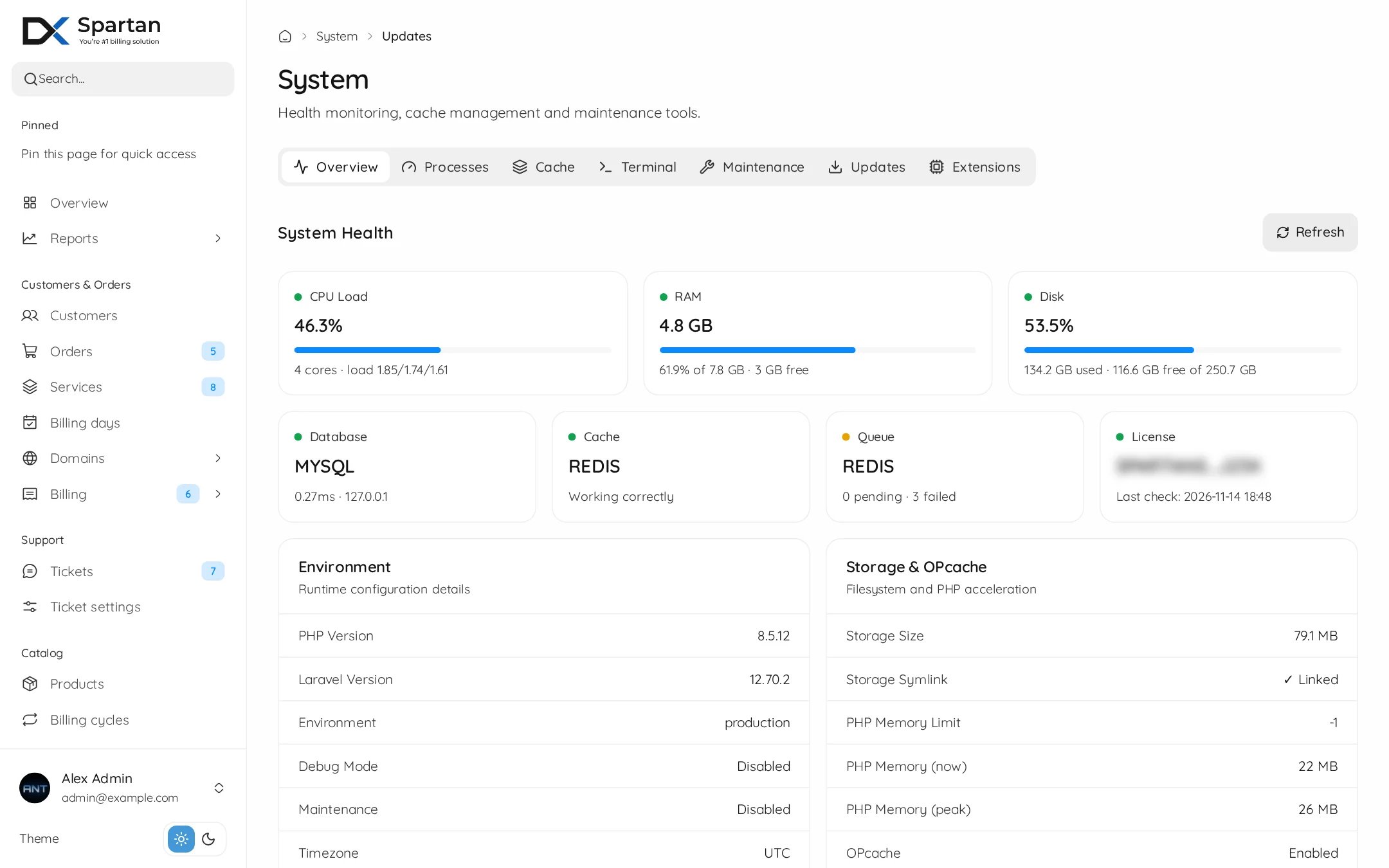
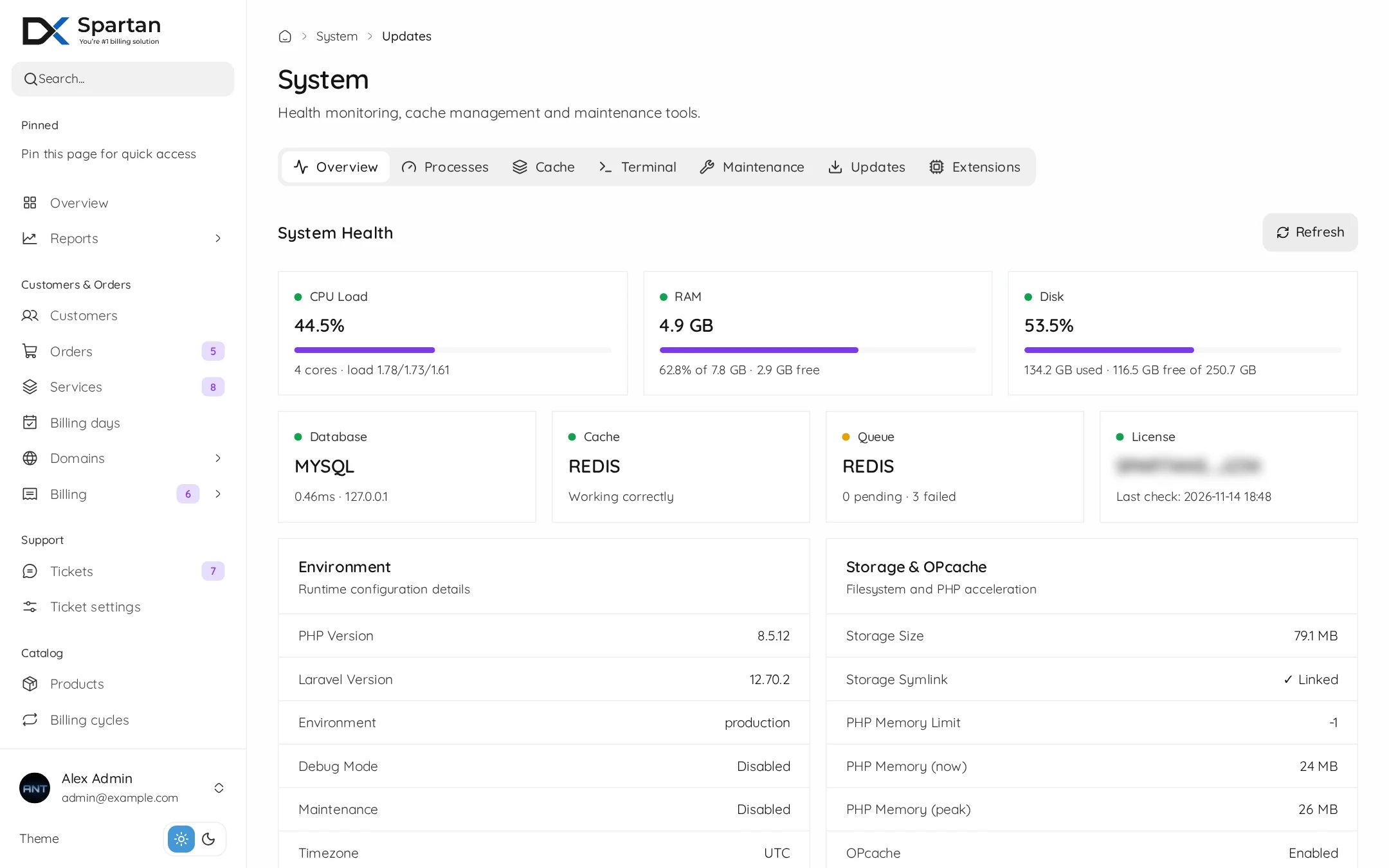
Admin overview with the default palette

Default colors and corners

Admin overview with a purple accent and square corners

New accent color, square corners

theme.css tokens

Admin Modern styles itself from variables in resources/js/pages/admin-themes/admin-modern/theme.css. They are all scoped to .admin-modern and most are built from the site colors, so they follow the Colors page and dark mode.
Prefer the Colors page over editing theme.css. Edits to the file are overwritten by an update, the Colors page is stored in the database and survives.
Dark mode is a .dark class on the page. Status colors have a light and a dark value in theme.css, the rest follow the site palette.

Custom pages with the kit

An addon can add its own admin screens that look native. Wrap the page in AdminLayout and an admin-modern div, then build from the kit in admin-themes/admin-modern/components/.

Admin pages

Register the page, route it and give it a permission.
Because the kit reads the tokens above, your page follows the Colors page, the corner setting and dark mode with no extra work.
Do not hardcode hex colors or pixel radii in an addon page. Use the --am-* variables and Tailwind rounded-* classes.

Keep your changes through updates

Colors and the corner setting live in the database, so updates never touch them. Addon pages are part of the module, and modules that do not ship with the release are restored by the updater.