

Prerequisites
- A Vipps MobilePay business account
- A test or production sales unit
- Developer access to the sales unit
If you cannot see For developers in the business portal, ask an administrator to grant you Developer access.
Get Your Vipps MobilePay Credentials
1
Open the business portal
Log in to the Vipps MobilePay business portal.
2
Open the developer settings
Click For developers in the sidebar to view your sales units.
3
Select the environment
Select Test for sandbox payments or Production for live payments.The selected environment must match the Mode configured in Spartan.
4
Open the sales unit keys
Find the sales unit you want to connect and click Show keys.
5
Copy the credentials
Copy the following values:
The primary and secondary subscription keys are interchangeable. Keep all credentials private and regenerate them immediately if they are exposed.
Configure Vipps in Spartan
1
Open the Vipps Gateway module
Log in to the Spartan admin area, then go to Modules → Payments → Vipps Gateway.
2
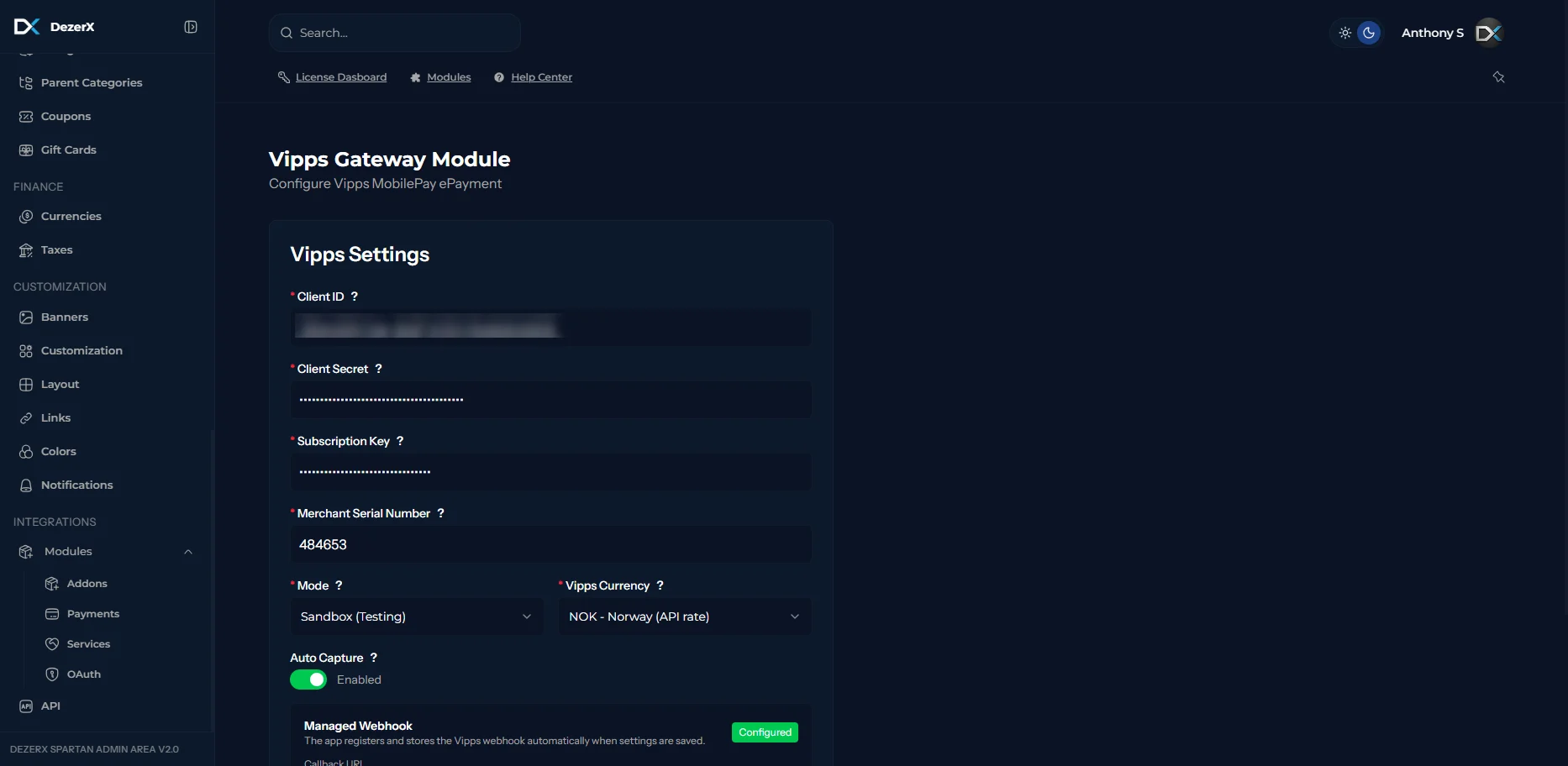
Enter the Vipps credentials
Paste the Client ID, Client Secret, Subscription Key, and Merchant Serial Number from the same Vipps MobilePay sales unit.
3
Configure payment behavior
- Mode: Select Sandbox for test keys or Production for live keys.
- Vipps Currency: Select the currency supported by your sales unit.
- Auto Capture: Enable this to capture authorized payments automatically.
-
Managed Webhook: Spartan registers and stores the Vipps webhook when the settings are saved.
4
Save the settings
Save the gateway settings and confirm that the managed webhook shows as configured.
Troubleshooting
- Confirm that all four credentials belong to the same sales unit.
- Confirm that the Spartan mode matches the environment from which the keys were copied.
- If authentication fails after regenerating credentials, update Spartan with the new values.
- If For developers is unavailable, verify your business portal permissions.