

Create the Discord app
1
Create an application
Open the Discord developer portal and press New Application. Give it your store name.
2
Add the redirect URL
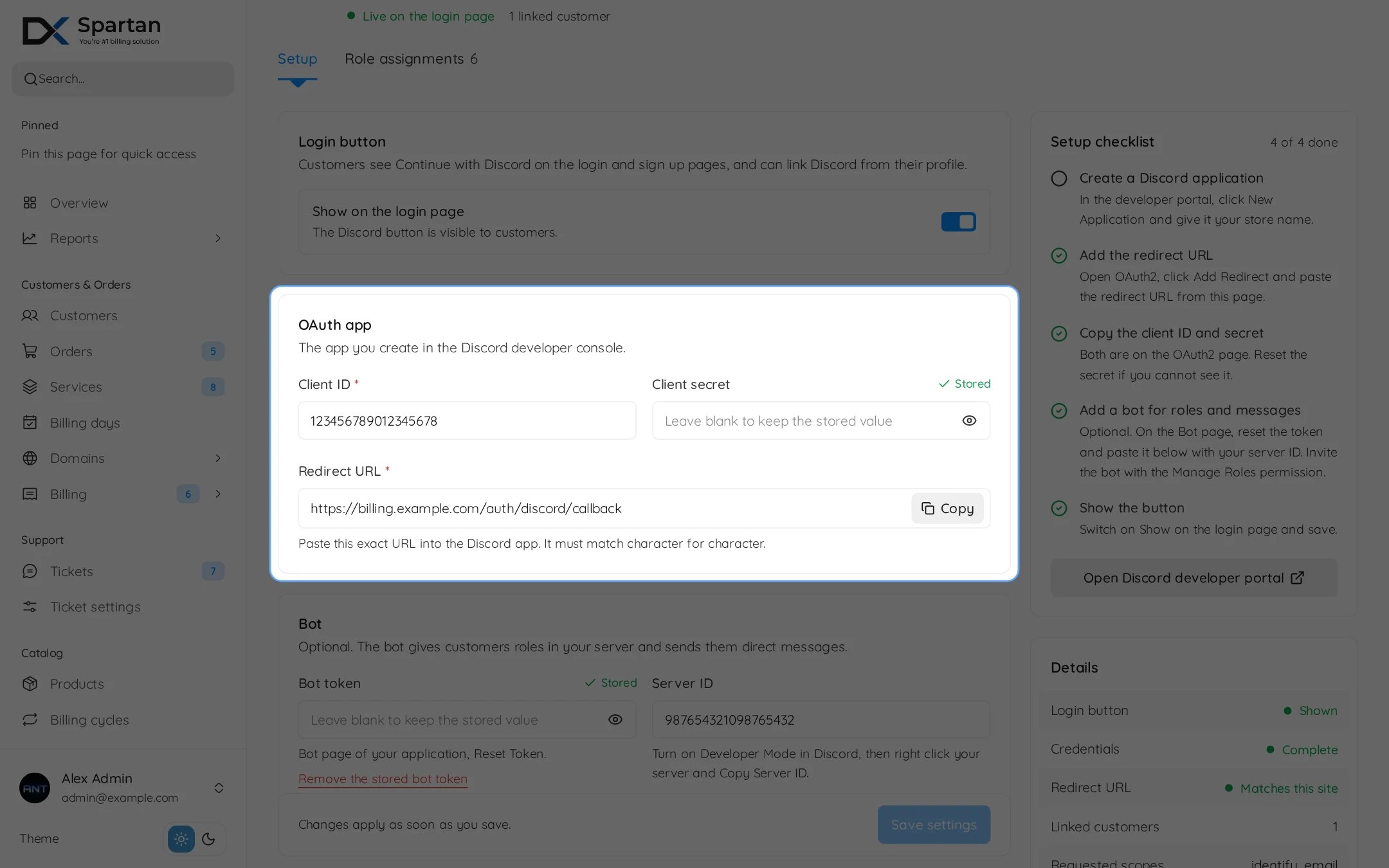
Go to OAuth2, press Add Redirect and paste the redirect URL from the Spartan settings page. It looks like this, with your own billing domain:
3
Copy the client details
On the OAuth2 page copy the Client ID, then reset and copy the Client Secret.
4
Add a bot for roles and messages (optional)
Open Bot, reset the token and copy it. Invite the bot to your server with the Manage Roles permission, and move its role above every role it should give out.
5
Copy the server ID
In Discord turn on Developer Mode, right click your server and choose Copy Server ID.
Fill in Spartan
Open Admin, Integrations, Modules, Sign-in providers and press Settings on Discord. The Setup tab has three cards.
Press Save settings. The Setup checklist on the right ticks off each step, and Details shows whether the button is shown, the credentials are complete and the redirect URL matches this site.
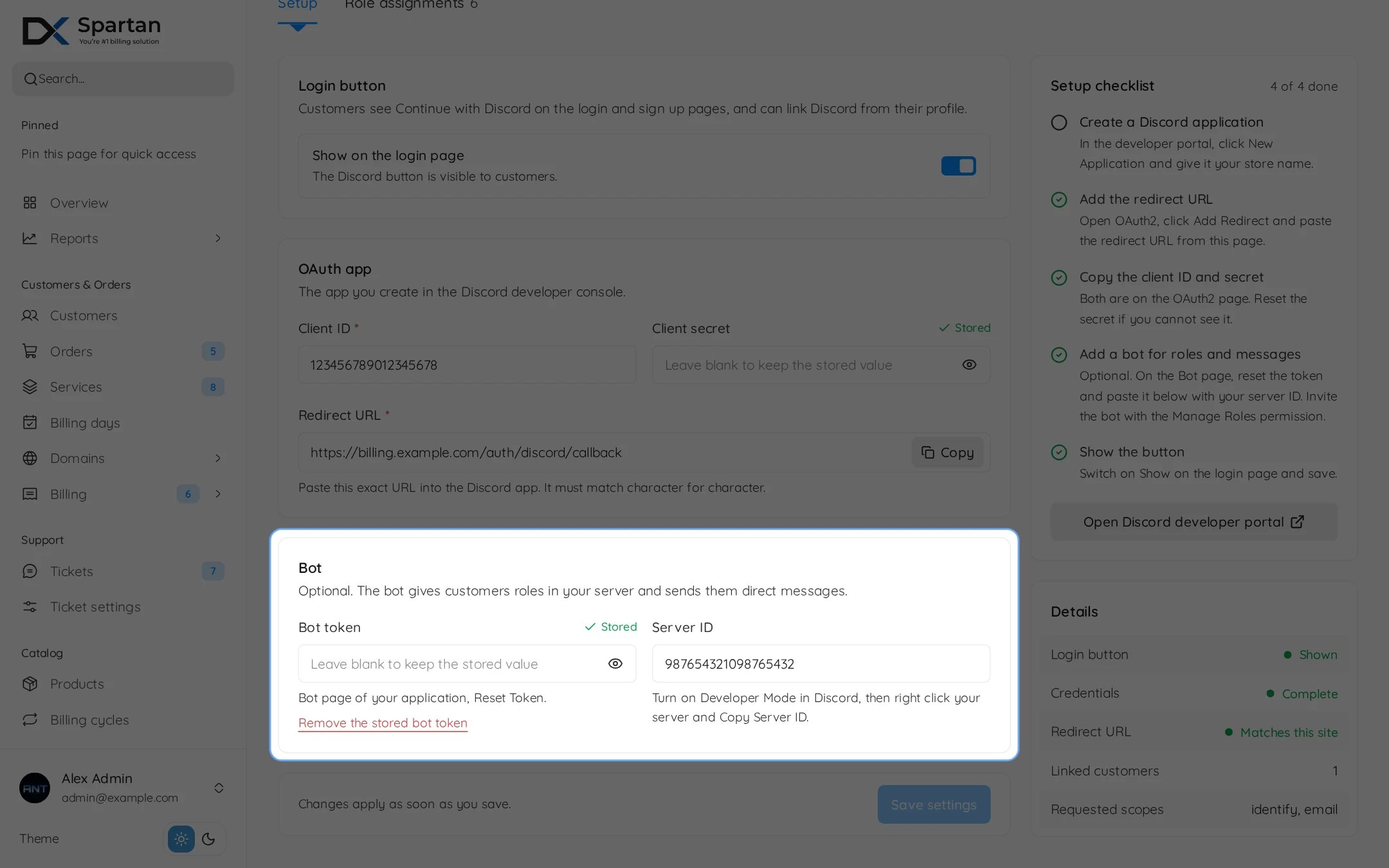
The Discord button only appears once a client ID and secret are saved, even if Show on the login page is on.
A customer is matched to an existing account by e-mail, but only if Discord has verified that e-mail. Otherwise they are asked to sign in with a password and link Discord from their profile.
Role assignments
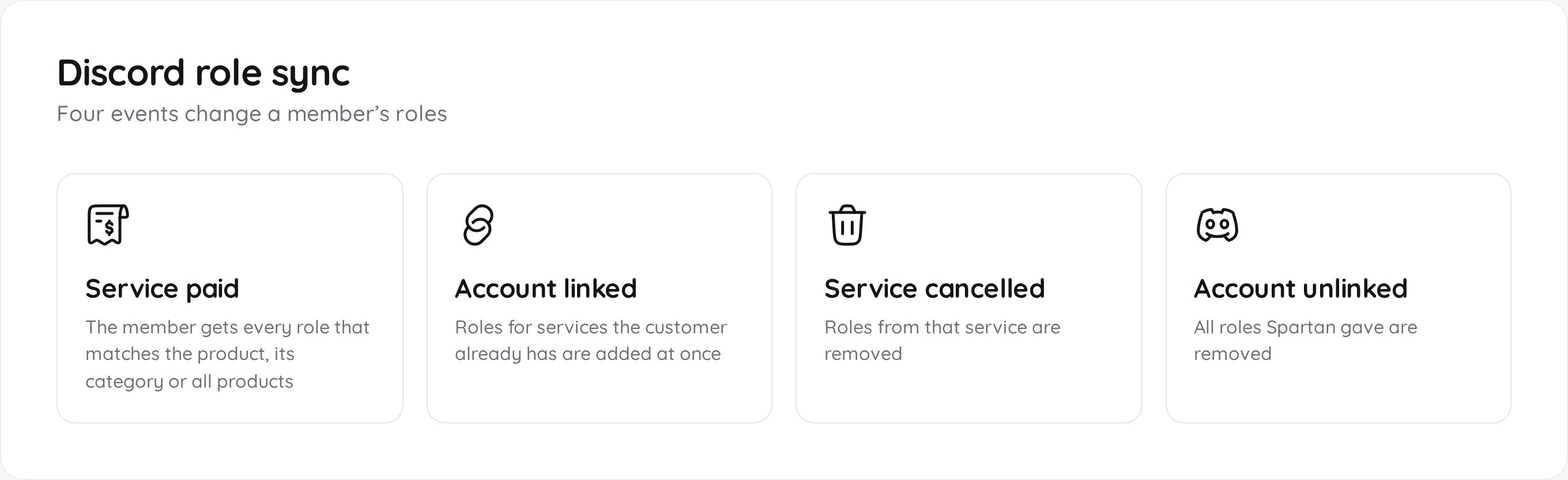
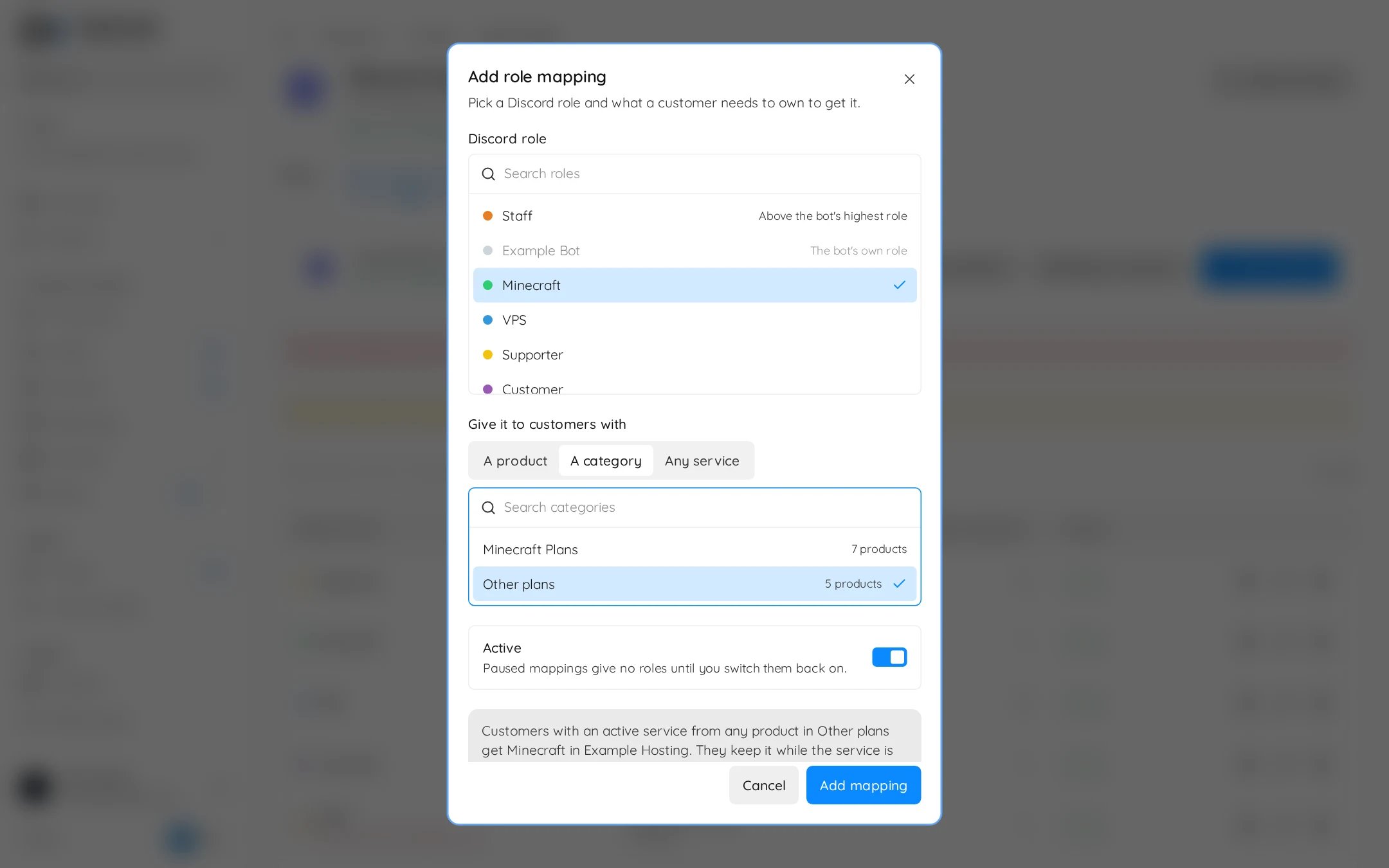
- Customers get the role when a service payment completes or when they link Discord. They lose it when the service is cancelled or terminated, unless another service still gives the same role.
- One role can be mapped to several products or categories.
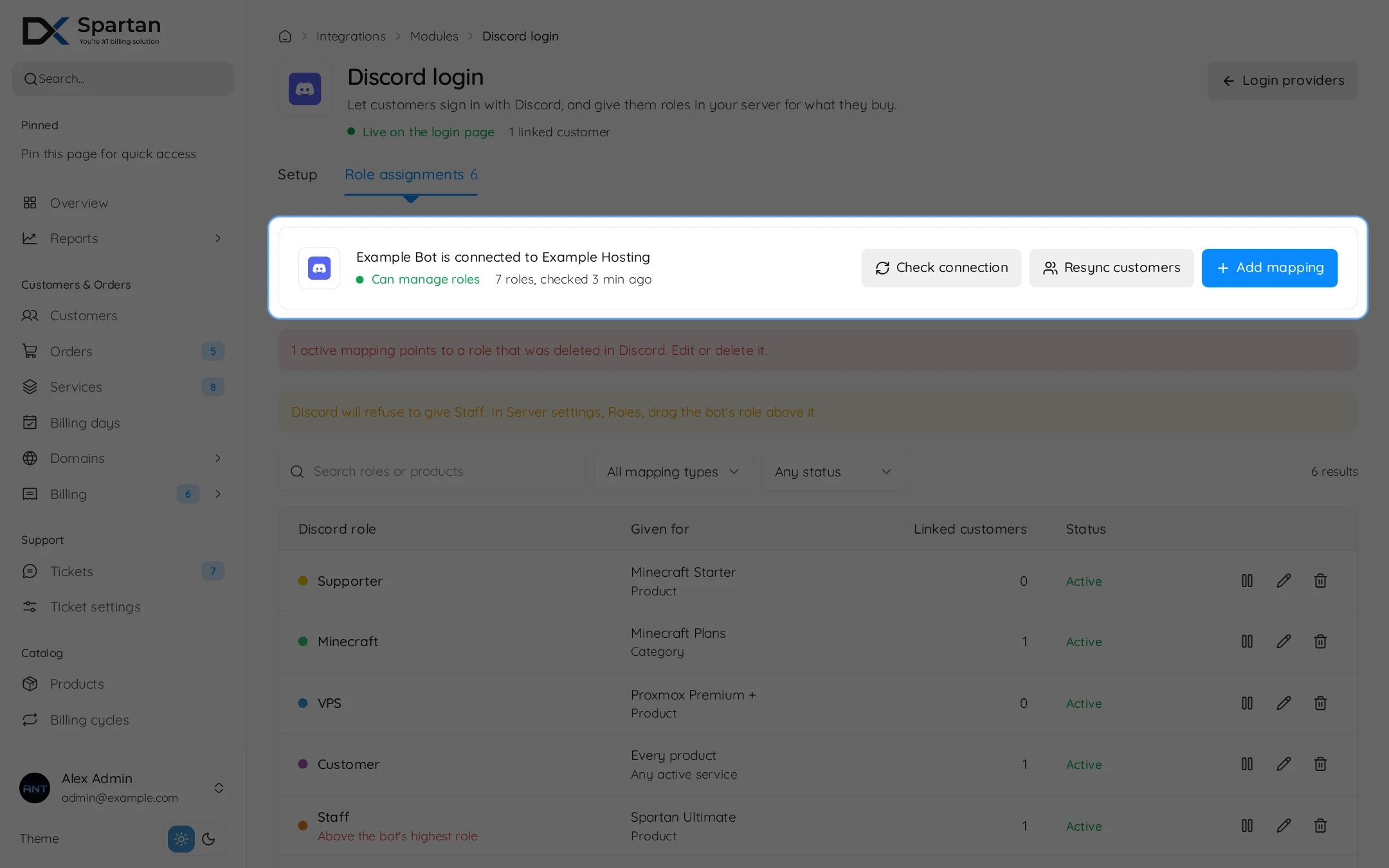
- Pause a mapping to stop giving the role. Deleting a mapping leaves roles customers already have.
- Resync customers adds missing roles to every linked customer with an active service, in the background. It never removes roles.
- Until the bot is connected you can add a mapping by pasting a role ID.