

Create the Google app
1
Pick a project
Open the Google Cloud console and select or create a project.
2
Set up the consent screen
Go to APIs and Services, OAuth consent screen. Enter the app name, a support e-mail and your domain, and publish the app so any customer can sign in.
3
Create the credentials
Go to Credentials, Create credentials, OAuth client ID. Choose Web application.
4
Add the redirect URL
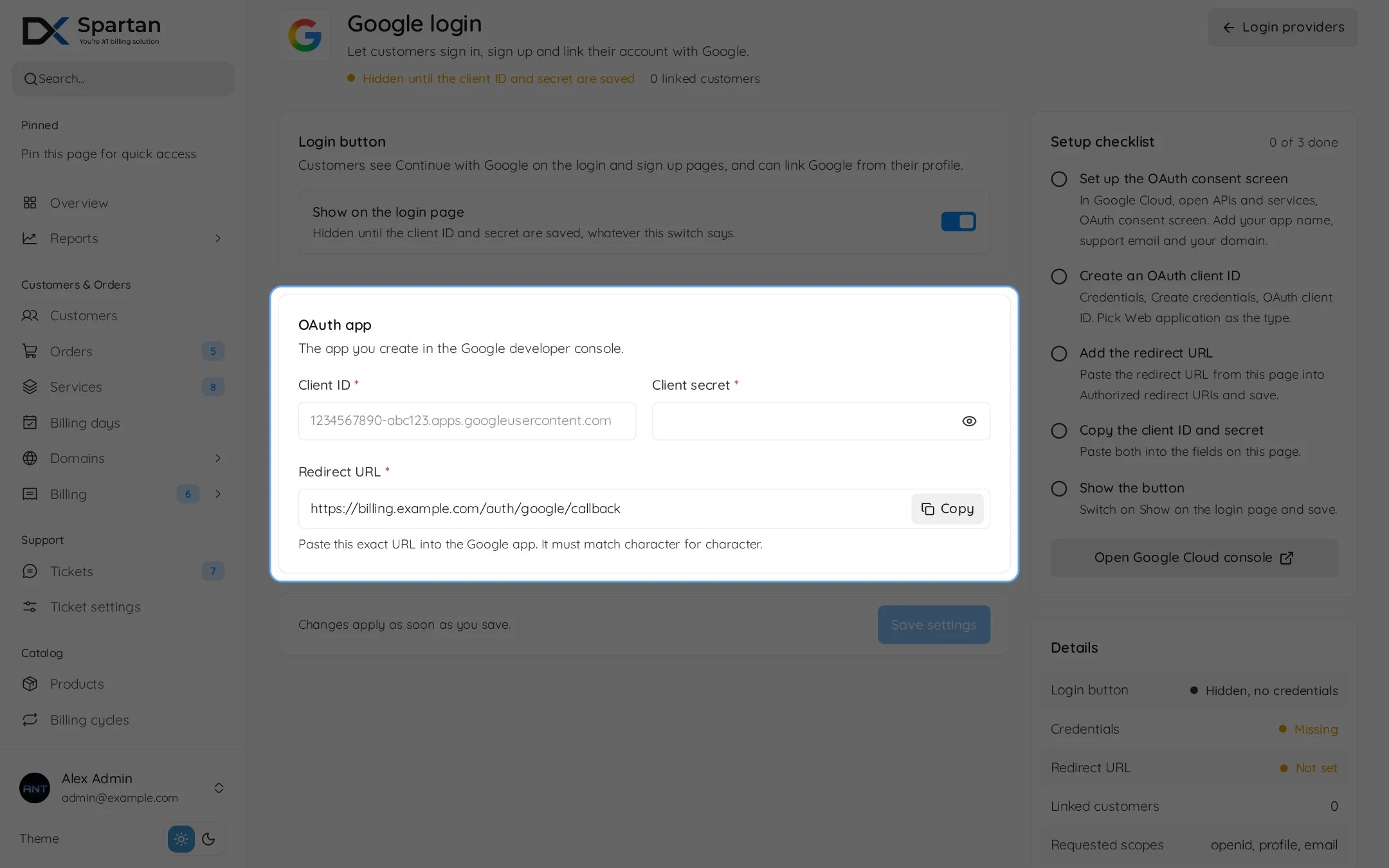
Under Authorized redirect URIs paste the redirect URL from the Spartan settings page. It looks like this, with your own billing domain:
5
Copy the keys
Copy the Client ID and Client secret.
Fill in Spartan
Open Admin, Integrations, Modules, Sign-in providers and press Settings on Google.
Press Save settings. The Setup checklist on the right ticks off each step, and Details shows whether the button is shown and the redirect URL matches this site. Spartan asks Google for the openid, profile and email scopes.
The Google button only appears once a client ID and secret are saved, even if Show on the login page is on.
An existing account is only linked by e-mail when Google reports the address as verified.