

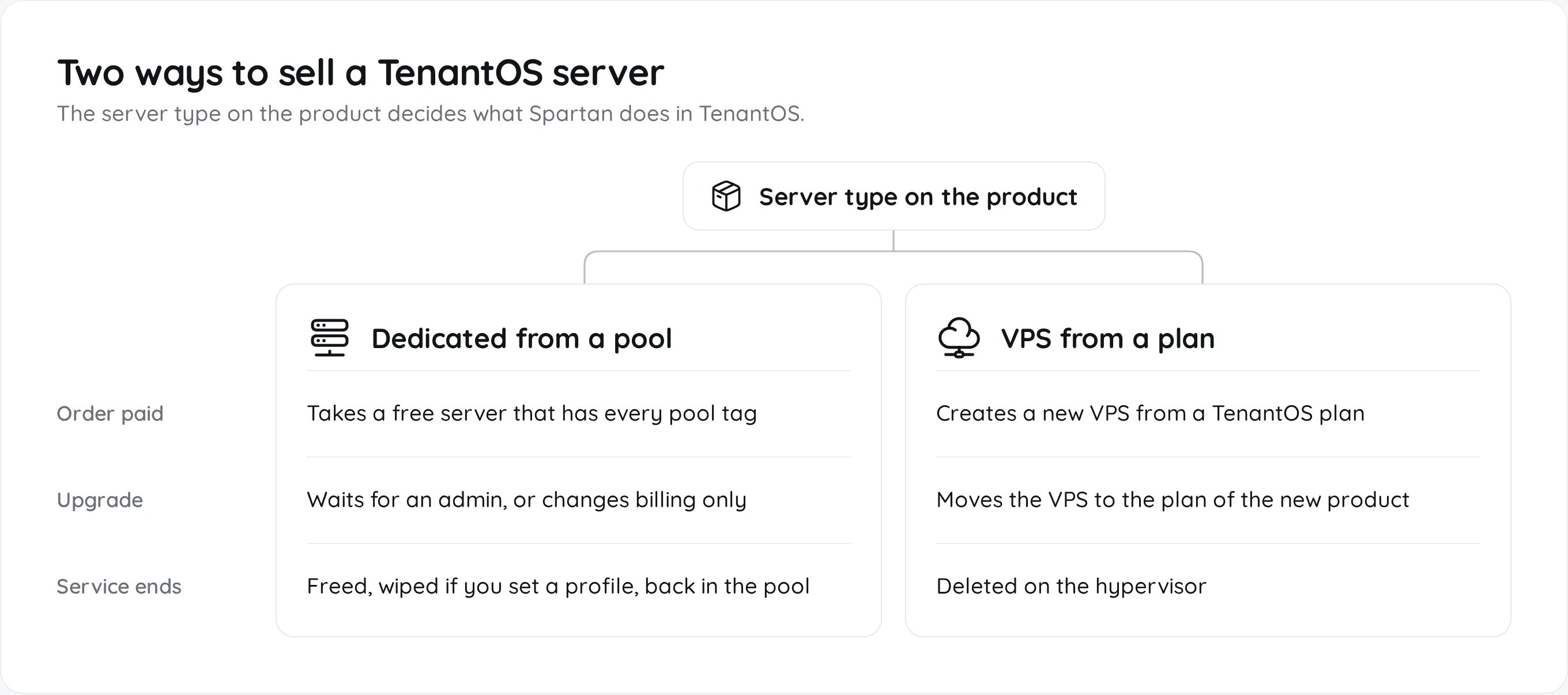
Both also get one click login to the TenantOS panel, SSH keys for reinstalls and the server activity log.
Requirements
- A TenantOS panel your Spartan server can reach over HTTPS. Plain HTTP only works for private IP addresses.
- An admin or reseller API key, created in TenantOS under My Account, API Keys, ideally restricted to your Spartan server’s IP.
- An end user role in TenantOS for your customers. Every product needs one.
- For dedicated servers: free servers owned by the API account, tagged for the pool (For Rent by default). A disk wipe profile is strongly recommended.
- For VPS: at least one VPS plan, created in TenantOS under Virtualization.
Connect Spartan
1
Enable the module
Open Admin, Integrations, Modules, Services and switch TenantOS on. Then open its settings at
/admin/tenantos/settings.2
Enter the URL and API key
Enter the TenantOS URL and paste the API key. The key is stored encrypted. Leave the key field empty later to keep the saved key. Changing the address, or turning off certificate checks, asks for the key again, because the saved key is only sent to the address it was saved for.
3
Save and test
Press Save settings, then Test connection. The test pings TenantOS and reads the API account and the TenantOS version. It never changes anything. The Connection card on the right shows the result.
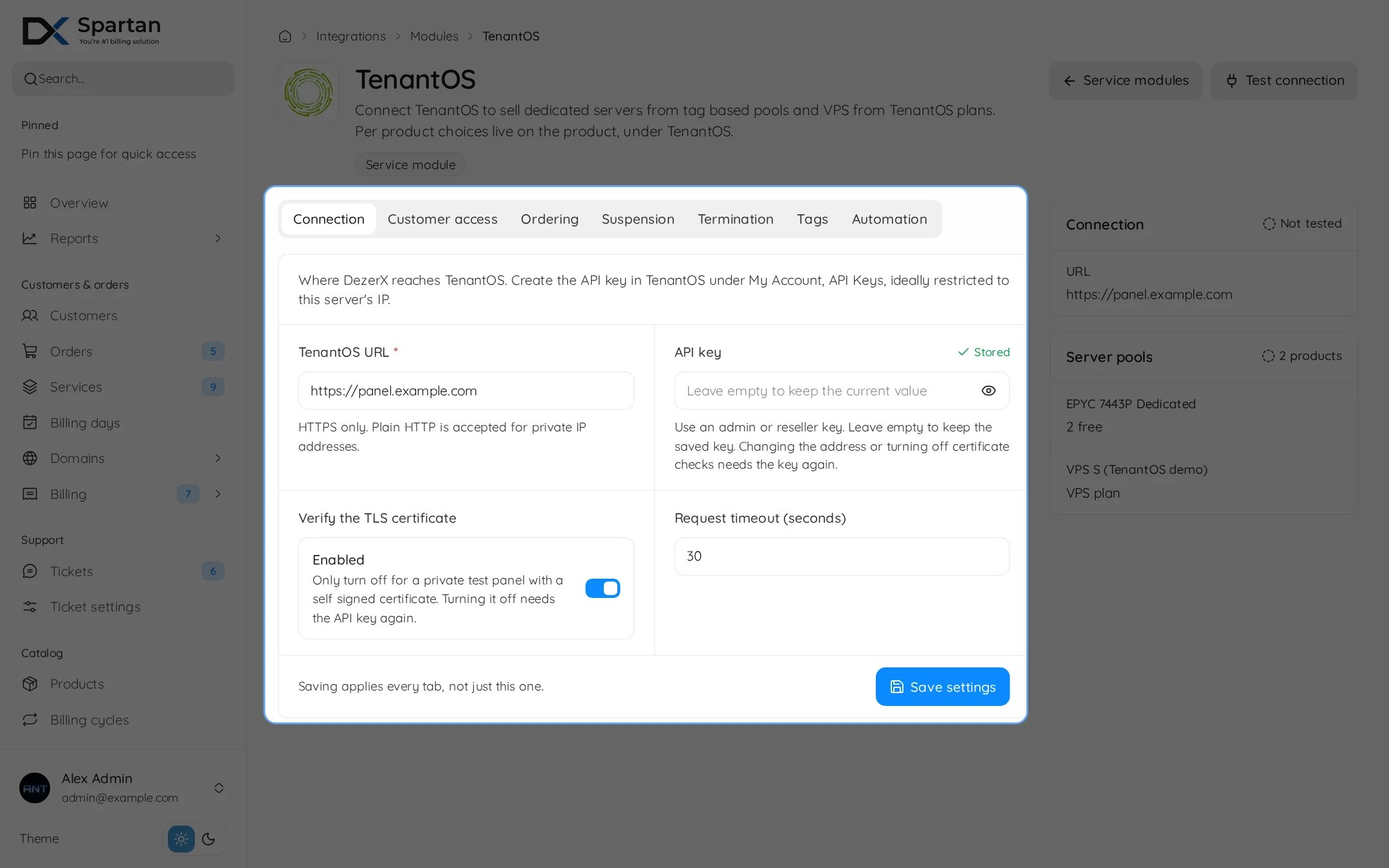
Connection
Customer access
Ordering
Suspension
Termination
Tags
Tags Spartan adds to or removes from a server, comma separated. They move a server between your pool and a customer.Automation
Set up a product
Create a product, open the Module tab and pick TenantOS. The lists on this tab load live from TenantOS, so save the connection first. Refresh options reloads them.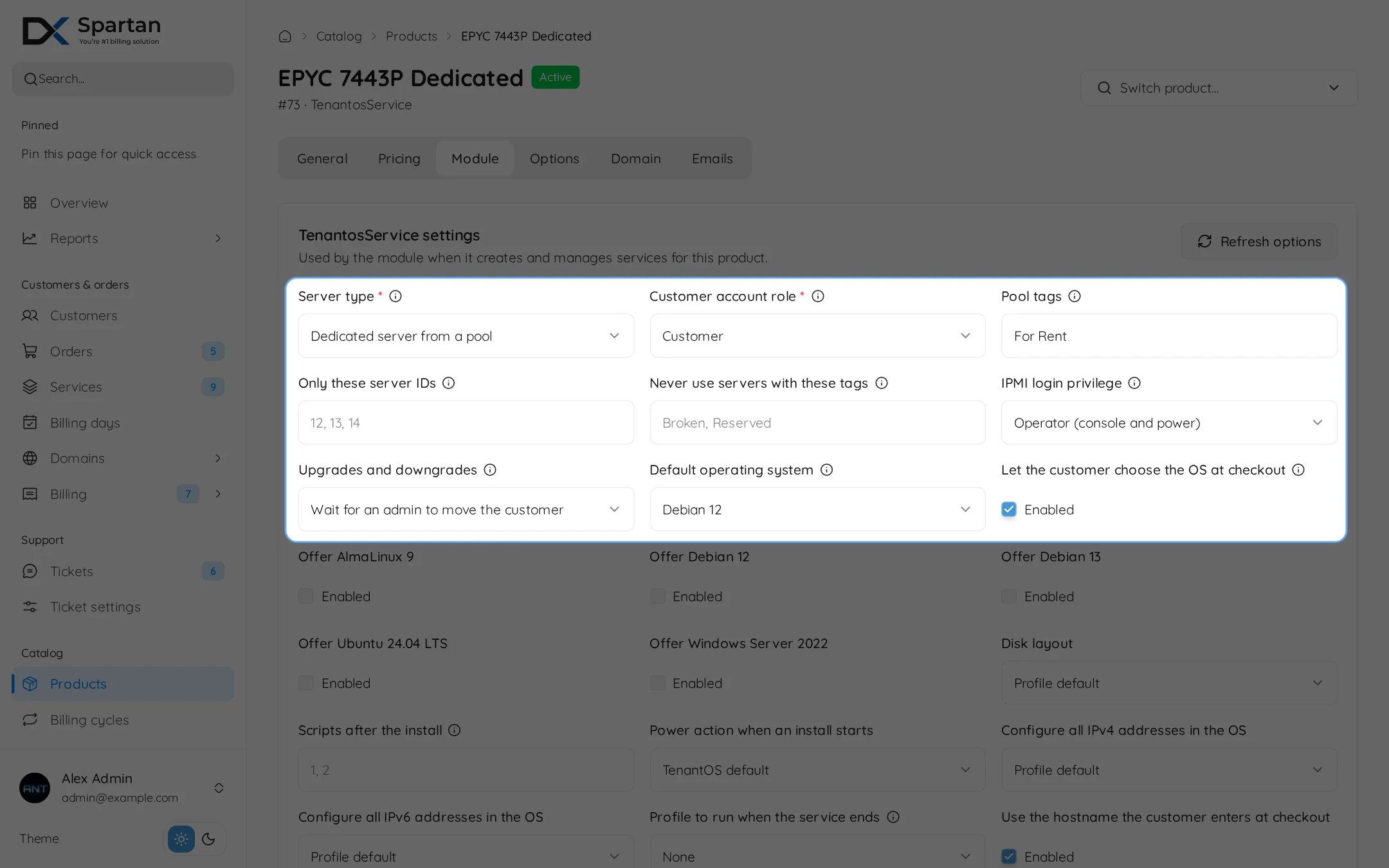
1
Server type and role
Pick the Server type: Dedicated server from a pool, or Virtual server from a TenantOS VPS plan. The form reloads with the fields for that type. Then pick the Customer account role, the TenantOS role of the account Spartan creates for the customer. Admin and template roles are never offered, and a reseller role gets a warning because customers could create sub users.
2
Dedicated: the pool
A server qualifies only when it has every Pool tags entry (For Rent by default). Only these server IDs narrows the pool further, and Never use servers with these tags adds to the global exclusions. Without pool tags and without server IDs, orders are refused. The help text shows how many free servers match right now. IPMI login privilege is Operator (console and power) or User (read only), never Administrator. Upgrades and downgrades either waits for an admin to move the customer, or changes billing only and tells admins.
3
VPS: the plan
Pick the VPS plan. Resource overrides take one dotted plan path per line, the same paths as the TenantOS WHMCS module, for example
cores=4, memory=8192 or disks.disk0.disk_size=80. Apply configurable option changes to the running VPS is off by default. When on, paid option and plan changes set CPU cores, sockets, CPU units, memory and the first disk on the VPS. Disks only grow. Server name pattern sets the name shown in TenantOS.4
Operating system
Pick the Default operating system, or Do not install an OS. Tick Let the customer choose the OS at checkout to show an OS picker, and use the Offer boxes to limit the list. Ticking none offers all of them, and reinstalls follow the same list. Disk layout, Scripts after the install (TenantOS script IDs), Power action when an install starts and Configure all IPv4 or IPv6 addresses in the OS fine tune the install.
5
Wipe profile
Dedicated products have Profile to run when the service ends. Pick a disk wipe profile here. It starts once the server is taken back from the customer.
6
Hostname and network
Use the hostname the customer enters at checkout is on by default. Otherwise the Hostname pattern applies, with
{service_id}, {user_id} and {random}. Extra IPv4 addresses (0 to 256) and IPv6 subnet size (a prefix length such as 64) are assigned after the server, optionally from given subnet IDs. Run network automation after IP assignments lets TenantOS update switch VLANs.7
Bandwidth
Monthly bandwidth limit in GB, 0 for unlimited. Bandwidth counted is total, incoming, outgoing or the 95th percentile of the last 30 days (then the limit is read as Mbit/s). Bandwidth period is the last 30 days or the calendar month. When the limit is reached, Spartan only shows it to the customer, tells admins, or suspends the service and tells admins. Actions only run while Check bandwidth limits every hour is on.
8
Customer features
Untick anything the customer should not be able to do. See the table below.
Configurable options can change the order per customer. Map an option to the OS profile id, disk layout id, VPS plan id, extra IPv4 addresses, IPv6 subnet size, monthly bandwidth, a VPS resource (cores, sockets, memory, CPU units, first disk size, IPv4 on the first interface, maximum backups or snapshots), or Dedicated pool: server must have this tag, which adds a pool tag per order. An option named
vps.cores or any other vps. path overrides that resource too. Customers cannot change these options after purchase.
What happens and when
With no free server in the pool, checkout tells the customer the server is sold out. The stock is checked per configuration, so a tag option counts its own pool.
Spartan never touches a server that TenantOS shows in another account than the customer’s. Suspend and terminate leave it alone, and unsuspend is refused. Every problem becomes an urgent service note and a notification for every super admin.
The TenantOS tab for staff
The TenantOS tab on the admin service page shows the server, its hardware, IP addresses, the customer’s TenantOS account and traffic.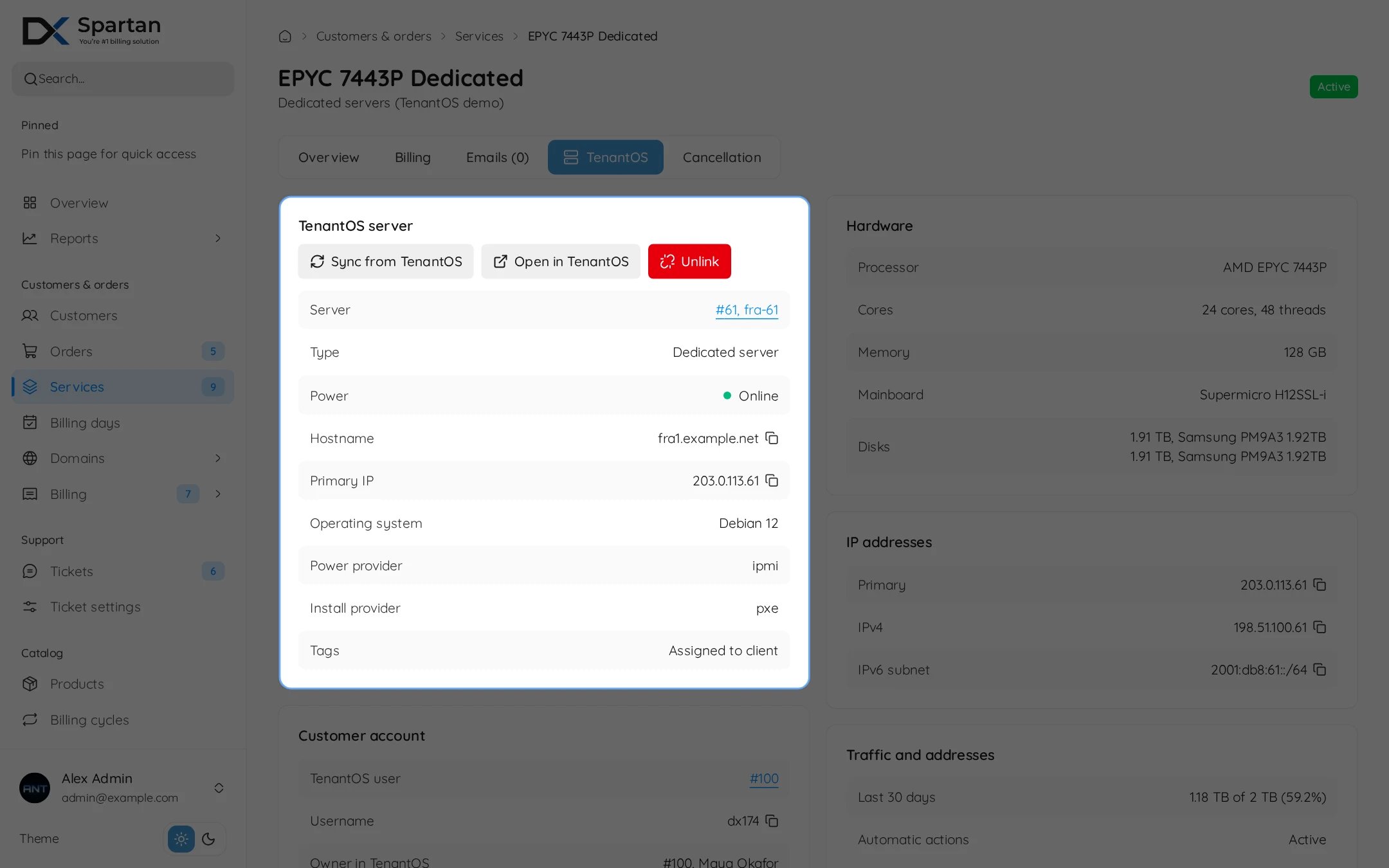
- Sync from TenantOS reads the hostname, IP addresses and OS again.
- Open in TenantOS opens the server page. With Log staff into the API account from the service tab on, it logs you in.
- Power sends on, off, reset or power cycle.
- Reinstall or Boot rescue with a profile, disk layout, hostname and an optional root password. The password is shown once and saved on the customer’s Access tab.
- Assign extra IPs gives the product’s extra addresses, for example after the step failed on the order.
- Check bandwidth reads the usage now. Tick Apply the product action when over the limit to also run the product’s action. Pause bandwidth actions stops automatic bandwidth actions until the next renewal.
- Unlink asks you to type UNLINK. Tick Take back and unlink to free the server first, like a termination. Without it, the server stays as it is in TenantOS.
- An unlinked service can be linked to a server by its ID, optionally with a TenantOS user ID. Show server pool lists your dedicated servers, marks each one Free or Not free and says why. A TenantOS account Spartan did not create needs the box This TenantOS user was not created by DezerX, and then panel login and panel password reset stay off. The API account and admin accounts are never linked.
The customer side
Customers manage the server from the Server group on their service page.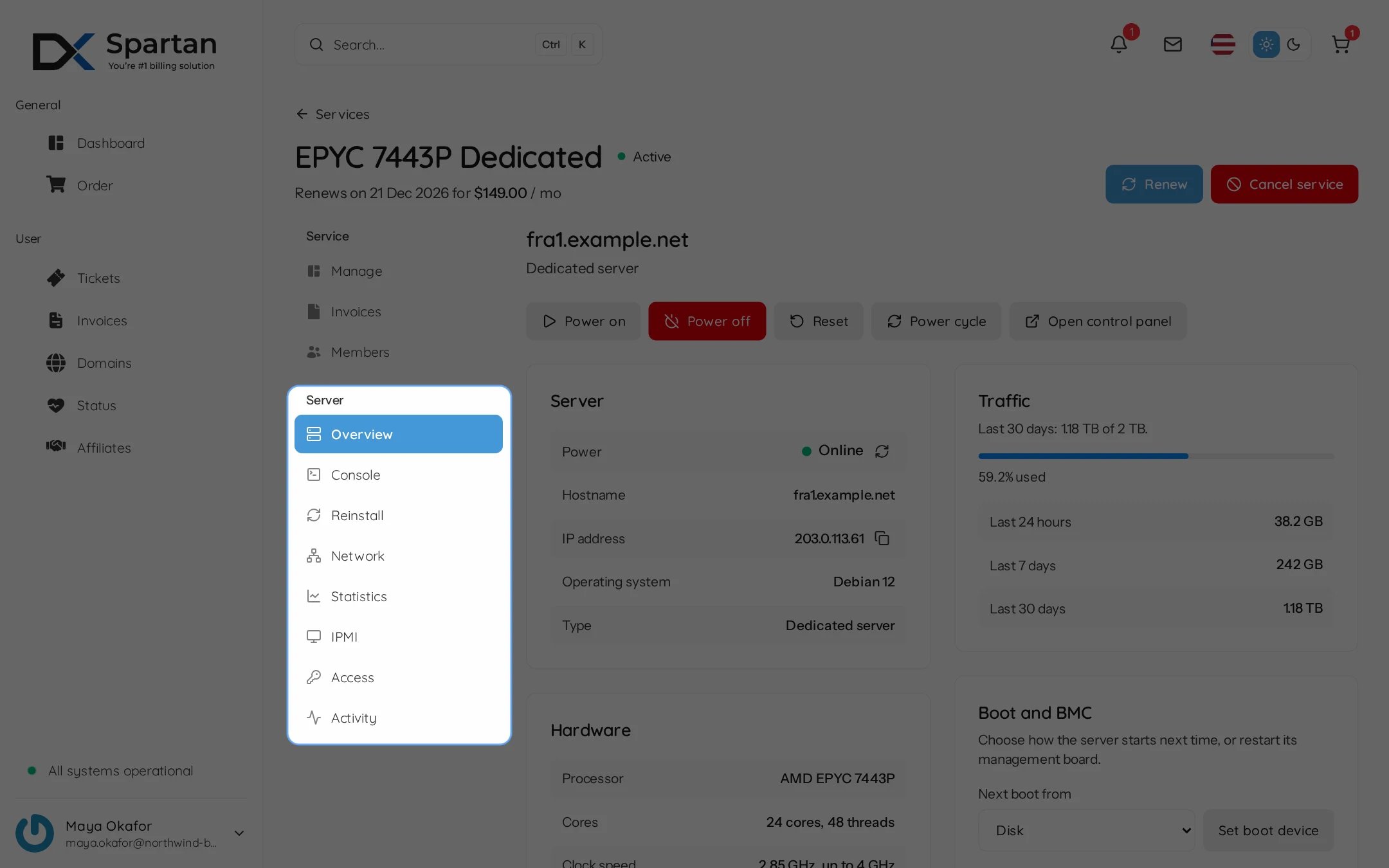
Tabs only show for features the product allows, and only open while the service is active and linked. Each tab is also a permission for service members, and Power actions is a permission of its own.
With Run customer actions as the customer’s TenantOS account on, server actions run as the customer’s own TenantOS account, so TenantOS still applies its ownership checks and role permissions.
Hourly sync and skip tags
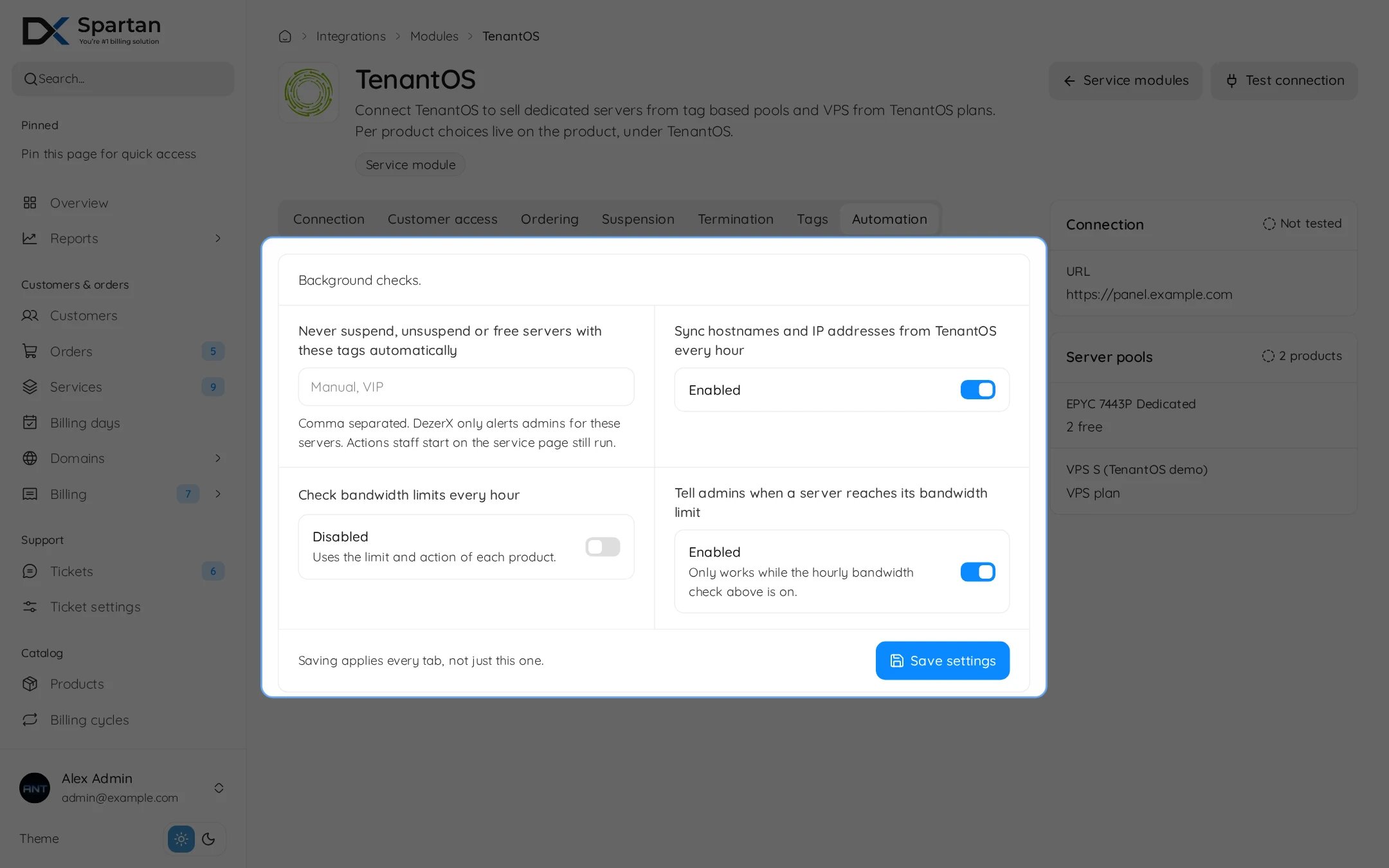
tenantos:sync runs every hour for active and suspended services. It:
- copies the hostname, IP addresses and OS from TenantOS, while Sync hostnames and IP addresses from TenantOS every hour is on,
- finishes installs, and reads the provider credentials for external servers,
- alerts admins when a server is missing, is now in another account, or the service owner changed outside Spartan’s change owner,
- checks bandwidth limits on active services, while Check bandwidth limits every hour is on.
php artisan tenantos:sync --service=123. Add --no-bandwidth to skip the bandwidth check.
Troubleshooting
- The API key was rejected. The key is wrong or deleted, or its IP restriction does not include your Spartan server.
- No free server matches this product right now. Add a server with the pool tags in TenantOS. It must be in your API account, not suspended, not busy and without an excluded tag. Show server pool on the service’s TenantOS tab tells you why each server is not free. Then retry the order.
- Orders are refused for a dedicated product. It has no pool tags and no server IDs. Set one of them.
- No customer role to pick. TenantOS has no assignable end user role. Create one there.
- Some lists could not be loaded from TenantOS. The product form shows this when plans, profiles or tags fail to load. Test the connection, then press Refresh options.
- Suspension finished with problems. The power provider does not support the power action, or the server has no manageable switch port. The service note says which.
- Upgrade not applied. Dedicated hardware never changes by itself. Move the customer to a matching server, then mark the invoice as processed.
- The console does not open. The link is bound to the customer’s IP. Behind Cloudflare Spartan reads the real IP, behind another proxy make sure the real IP reaches Spartan.